This article shows you how to open the add new entity page, choose whether you’re adding a single company, a new parent group or a subsidiary to an existing group, and connect its accounting data.
New to ScaleXP? Create your login and first company using Sign up on the app.scalexp.com login page.
Part 1 — Open the new entity setup page
1. Start from the entity dropdown
- Sign in to ScaleXP at app.scalexp.com.
- Click the entity dropdown at the top right of any page (it shows the name of the company you are currently viewing).
- Click Add new entity at the bottom of the list.
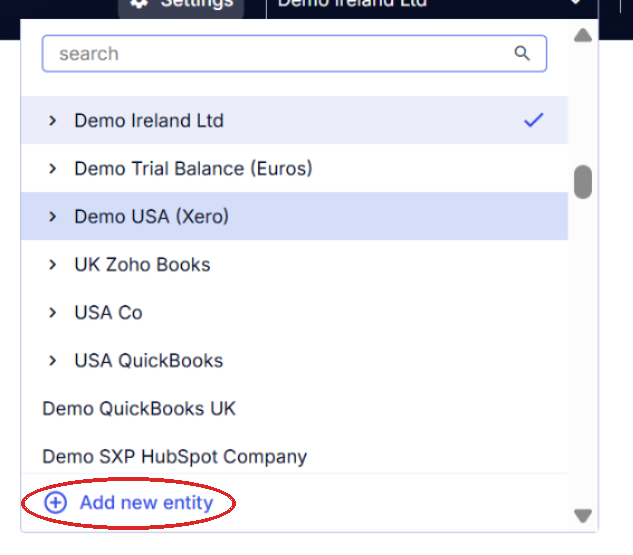
The Add a new entity page opens.
Part 2 — Choose what you are adding
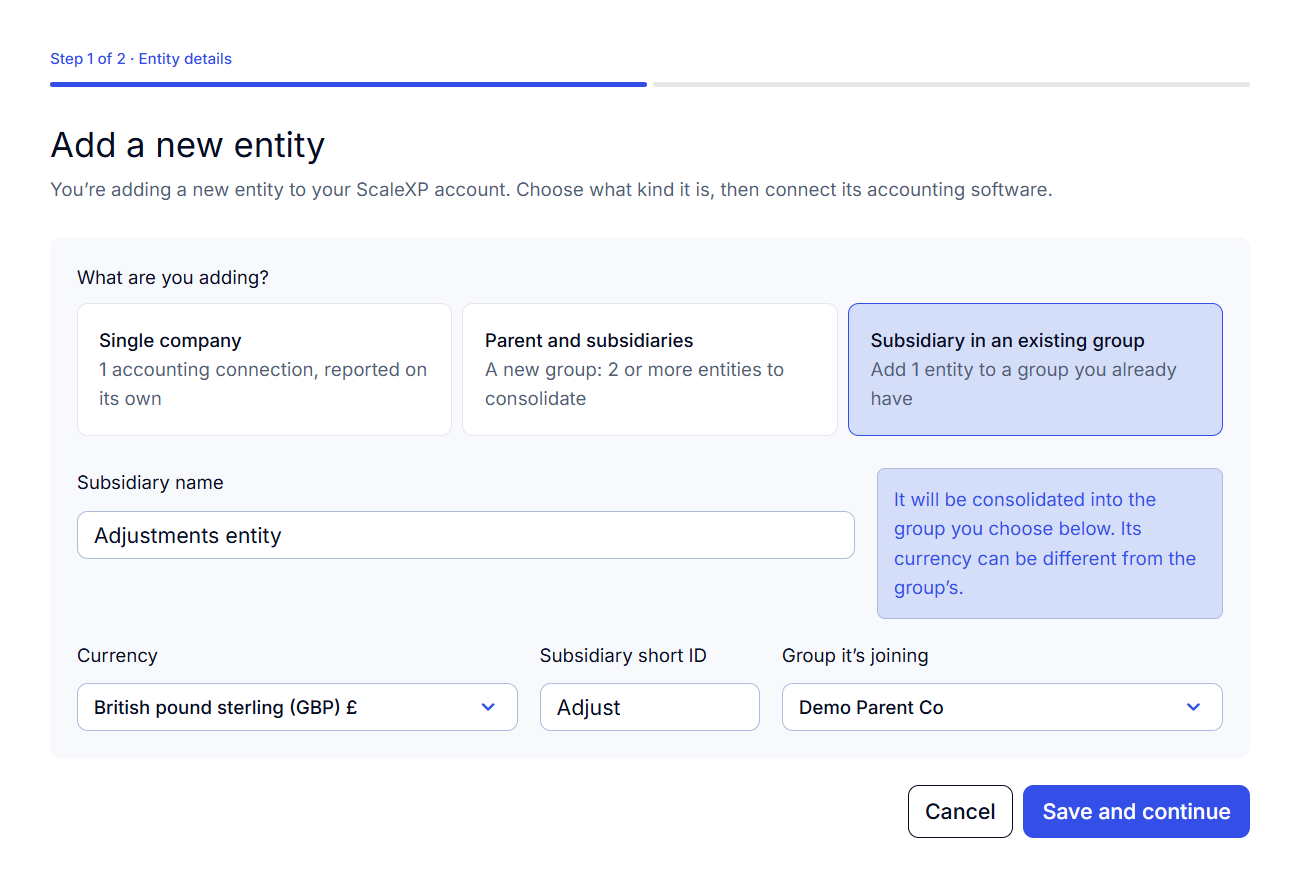
Under What are you adding? pick one of the three options below. The fields on the page change to match your choice.
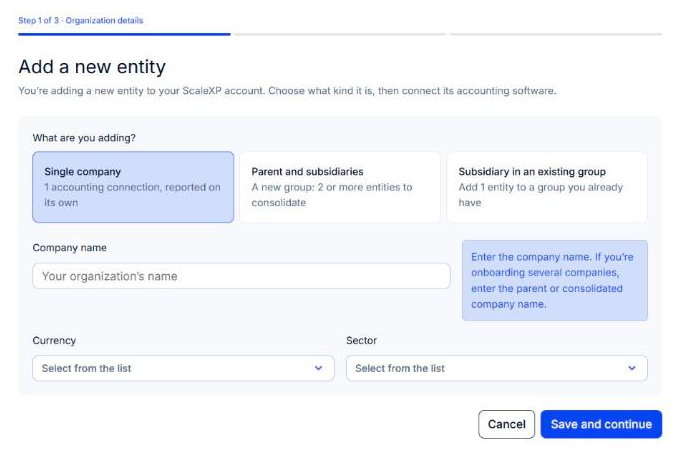
1. Single company
Choose Single company for one accounting connection that is reported on its own.
- Enter the Company name.
- Select the Currency.
- Select the Sector.
- Click Save and continue.
2. Parent and subsidiaries
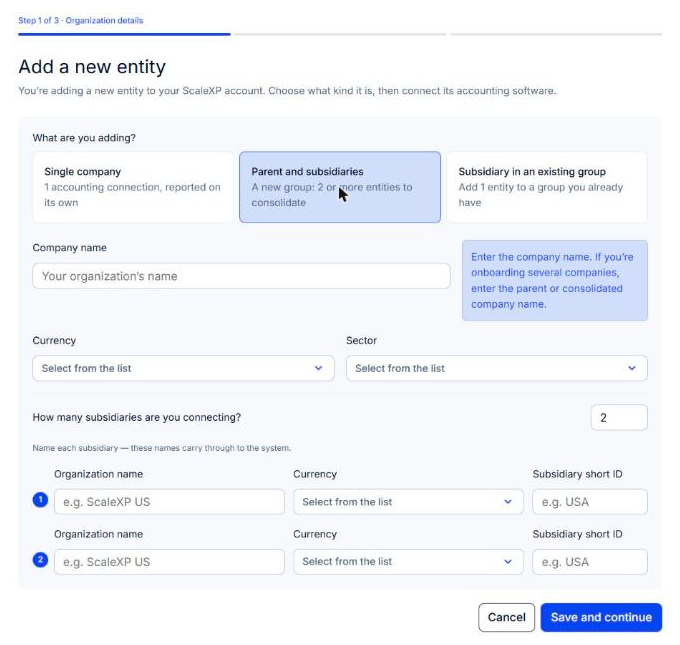
Choose Parent and subsidiaries to create a brand-new group of two or more entities that ScaleXP will consolidate.
- Enter the Company name of the parent (consolidated) organization, then its Currency and Sector.
- Set How many subsidiaries are you connecting? — the page adds a row for each one.
- For each subsidiary enter the Organization name, Currency and Subsidiary short ID (a short label such as "USA" or "UK" that is used to identify the entity in reports).
- Click Save and continue.
For the full group setup checklist — year ends, mappings, FX and intercompany eliminations — see How to set up consolidated reporting in ScaleXP.
3. Subsidiary in an existing group
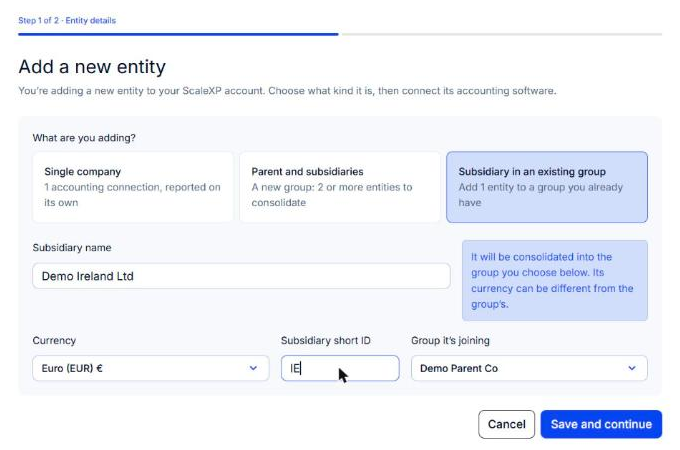
Choose Subsidiary in an existing group to add one entity to a consolidated organization you already have. ScaleXP links it to the parent for you.
- Enter the Subsidiary name.
- Select the Currency — it can be different from the group's currency; ScaleXP translates it at consolidation (see FX rates: what foreign exchange rate is being used?).
- Enter a Subsidiary short ID, for example "IE".
- Under Group it's joining, confirm the parent organization. It defaults to the group you were viewing when you clicked Add new entity; open the list to choose a different group if you have more than one.
- Click Save and continue.
Part 3 — Connect your data
1. Connect the new entity's accounting software
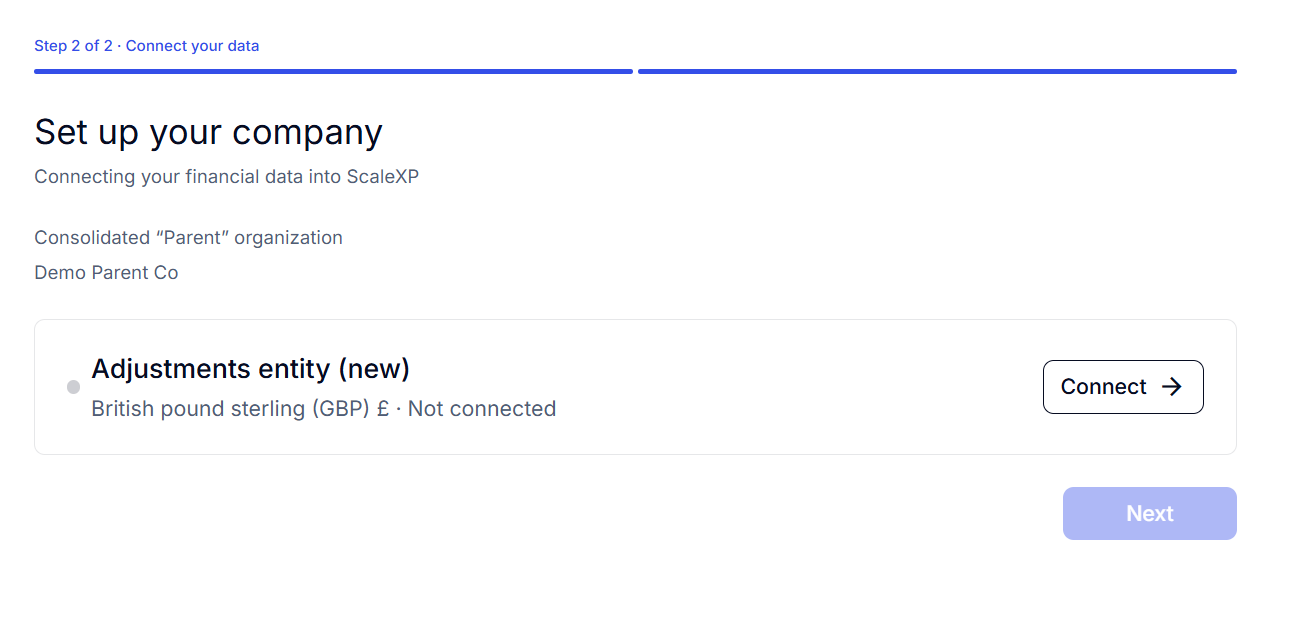
The Set up your company page lists the new entity (and, for a subsidiary, the consolidated parent it belongs to) with a Connect button.
For a new entity with an accounting connection:
- Click Connect next to the entity.
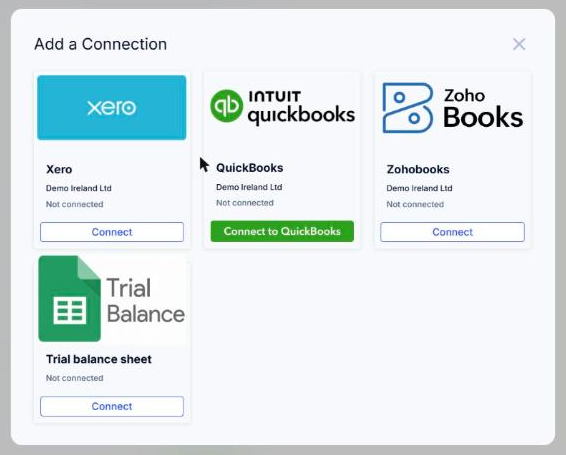
- In the Add a Connection dialog, choose Xero, QuickBooks, or Zoho Books, then sign in to your accounting system and select the organization that matches the entity name in ScaleXP.
- Set the sync options and start the sync.
- Click Next once the connection is in place.
To add an entity with no accounting system — for example a trial balance held in Google Sheets or a consolidation adjustments entity:
- Click Connect next to the entity.
- Select Trial balance sheet.
- Connect to Google Sheets or Excel. Follow How to add a subsidiary without including an accounting connection or How to add consolidation adjustments.
Note that you can connect data later from Load Data > Connections at any time.
2. Find the new entity
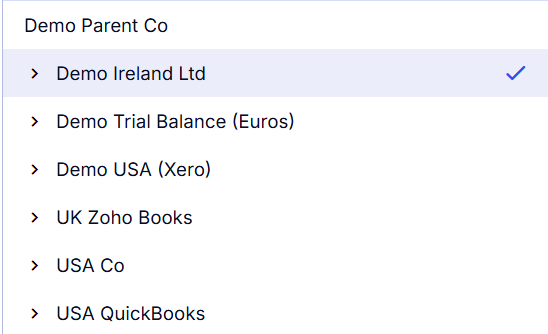
The new entity appears in the entity dropdown straight away. A subsidiary sits indented beneath its parent group; use the dropdown to switch between the parent and each subsidiary.
3. Configure the new entity
Once data has synced, configure the P&L and balance sheet mappings and give team members access:
- How to configure your P&L and balance sheet in ScaleXP (consolidated company)
- How to add team members and change permission levels
- How to change your financial year end
Related articles
- How to set up consolidated reporting in ScaleXP
- How to connect a new organization (consolidated)
- How to connect a new organization (single entity)
- How to add a subsidiary without including an accounting connection
- How to add consolidation adjustments
- How to add team members and change permission levels
- How to change your financial year end