This guide allows you to recognize a single line item partially on a fixed schedule and the remainder to spread evenly across the service period. Multi-tiered rules are the right tool when a single invoice line mixes a one-time element (an onboarding fee, a setup charge, a first-month uplift) with a recurring element (the subscription that runs across the service period) - and you don’t want to split the line on the invoice itself.
For the simpler “spread everything for this account the same way” pattern, set an account-level rule instead - see How to Set Rule Based Revenue Allocations.
Step 1. Open the multi-tiered revenue rules
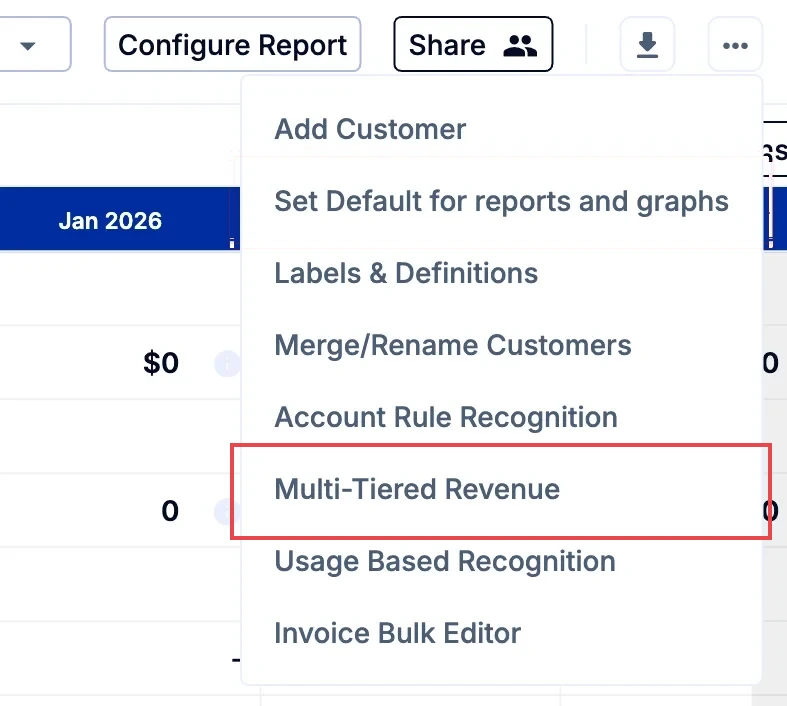
Open the multi-tiered rule editor from the Customers tab:
- Go to the Customers tab in the top navigation.
- Click the three dots at the top right of the page.
- Select Multi-Tiered Revenue.
Step 2. Select the account and the fixed percentage
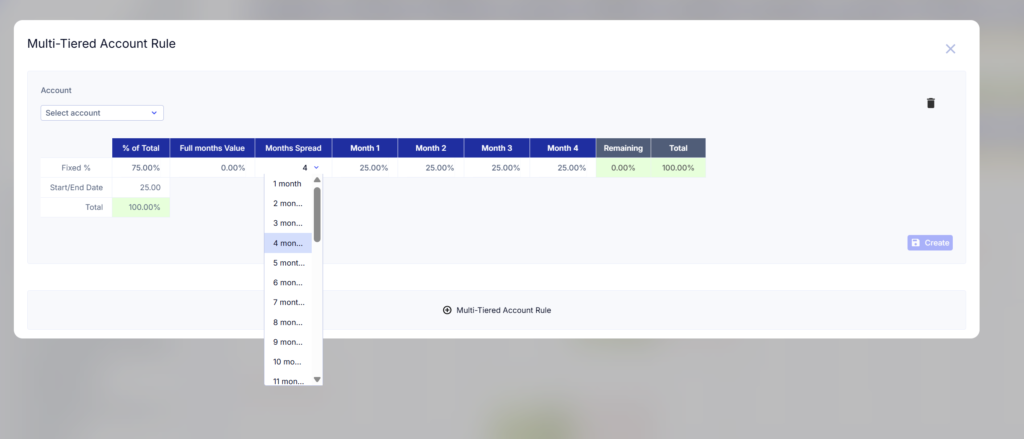
Click Multi-Tiered Account Rule to add a rule, then choose the GL account it applies to under Account.
In the Fixed % row, set % of Total - the percentage of each invoice line that recognizes on a fixed schedule from the invoice issue month. Then set the Months Spread and the percentage for each month (Month 1, Month 2 and so on) until Total reaches 100%. Typically this is all in month 1, but you can spread it across a few months if needed.
Step 3. Confirm the time-based portion
The remaining percentage of each invoice line (100% minus the Fixed %) is automatically allocated on a time basis - spread evenly from the line item’s start date to its end date, using the dates ScaleXP reads from the invoice text.
If your invoices don’t carry usable line item dates, the time-based portion falls back to ScaleXP’s default spread logic - see How ScaleXP Reads Dates and How ScaleXP allocates the spread of revenue and cost for the underlying mechanics.
Step 4. Save the rule
Click Create to save the new rule, or Update to save changes to an existing one. The rule applies immediately to every invoice posted to the chosen GL account.
To remove a multi-tiered rule and return the account to standard recognition, use the bin icon next to the rule on the Multi-Tiered Revenue page.
Step 5. You’re done - Multi-tiered allocation is live
That’s it - every new invoice posted to that GL account now splits automatically between its fixed-percentage element and its time-based element, with no per-invoice configuration needed.
Worked example - annual support with an onboarding component
- An “Annual Support” GL account is used for invoices that bundle an onboarding fee with twelve months of support on a single line. A typical invoice is $12,000, with $3,000 of that representing onboarding (recognized in month 1) and the remaining $9,000 representing twelve months of support (spread evenly from the service start date).
- GL account: Annual Support
- Fixed %: 25%
- Service period: taken from the invoice line item start and end dates
- For a $12,000 invoice, ScaleXP recognizes $3,000 in the invoice month and spreads the remaining $9,000 evenly across the twelve months of the service period.
Troubleshooting
If the fixed portion isn’t landing in the month you expect, check that the invoice line item has a start date that matches the service period - the fixed portion recognizes from the invoice issue month, but the time-based portion recognizes from the line item start date, which may be a different month.
When to use a different approach
Multi-tiered rules split each invoice line by a fixed percentage. If your recognition pattern depends on something outside the invoice - milestones reached, units consumed, percentage of work delivered - use a usage-based rule instead: Usage Based Revenue: Set up.
For multi-year contracts where each year is invoiced at a different amount but revenue should recognize straight-line across the whole contract, see Revenue recognition for multi-year contracts, free periods, and extensions.
Related articles
How to Set Rule Based Revenue Allocations
Revenue recognition for multi-year contracts, free periods, and extensions
Revenue setup 1: Configure and validate revenue recognition