This guide is for finance teams who want to set a fixed revenue allocation rule on a nominal account in ScaleXP, so every invoice posted to that account spreads the same way regardless of the line item text. Account rules are the simplest of ScaleXP’s three rule types and are the right choice when the same allocation pattern applies to every invoice for a given GL account - for example, “spread anything posted to Annual Support evenly over twelve months.”
For the wider rule landscape, see Revenue setup 1: Configure and validate revenue recognition. For what ScaleXP does by default when no rule is set, see How ScaleXP allocates the spread of revenue and cost.
Step 1. Open the account rules screen
Open the Account Rule Recognition screen from the Customers tab:
- Go to the Customers tab in the top navigation.
- Click the three dots at the top right of the page.
- Select Account Rule Recognition.
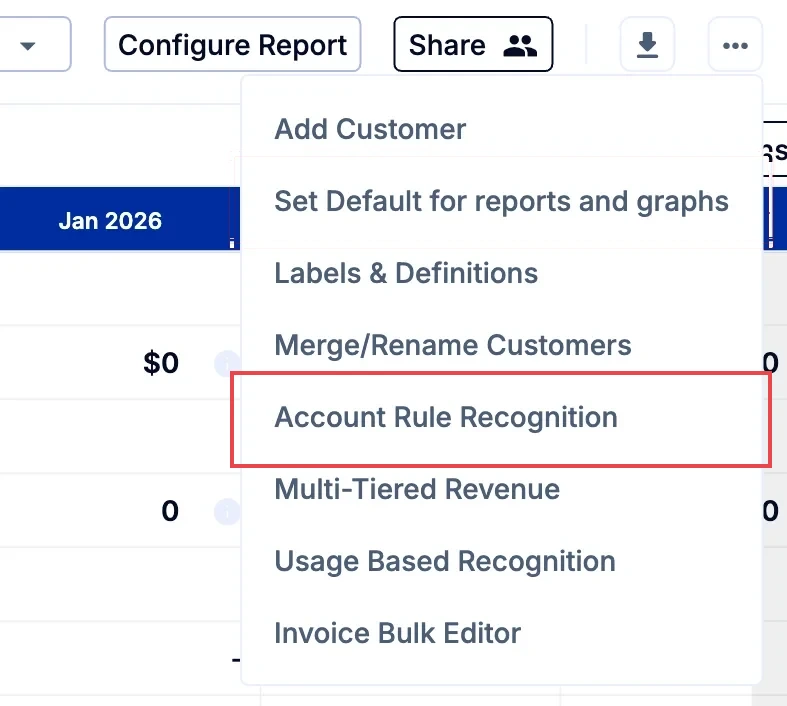
You’ll land on the Configure Account Rules page.
Step 2. Add an account rule
Click Add Account Rule.
In the rule editor, select the GL account this rule should apply to. Every invoice posted to that account from this point forward will use the rule instead of ScaleXP’s default text-recognition AI - an account rule takes precedence over text recognition for matched accounts.
Step 3. Set the months spread and monthly percentages
Under Months spread, choose the number of months over which to spread revenue for invoices posted to this account. Then set the percentage of each invoice to recognize in Month 1, Month 2 and so on. The Total must reach 100%, with nothing left under Remaining.
For example, to spread evenly over twelve months, set Months spread to 12 months and each month to 8.33% (or 8% in months 1-11 and 12% in month 12 if your accounting policy prefers integers).
Step 4. Decide where the rule starts from
Use the Set start to invoice issue date? toggle to choose where the spread starts:
Toggle on - the spread starts in the invoice issue month. Use this when your invoice line items don’t carry usable date information.
Toggle off - the spread starts on the start date ScaleXP reads from the invoice line item text. Use this when your invoices include a clear service period.
If you’re unsure, see How ScaleXP Reads Dates for how text recognition picks up start and end dates.
Step 5. Set the Full Month Value %
In the Full Month Value % box at the top right, enter the share of each invoice that should count as monthly recurring revenue (MRR) in each month of the spread.
- For an even spread, use 100 divided by the months spread, for example 8.33% for 12 months. MRR then matches the revenue recognized each month.
- To leave the account out of MRR, for example one-time setup or onboarding fees, enter 0%.
The box defaults to 20%, whatever the months spread, so always check it.
Step 6. Save the rule
Click Create to save a new rule, or Update to save changes to an existing rule. The rule applies immediately to every invoice posted to the chosen GL account.
To remove an account rule and return the account to standard recognition, use the bin icon next to the rule on the Configure Account Rules page.
Step 7. You’re done - Your account rule is live
That’s it - every invoice posted to that GL account will now follow your rule automatically, in this month’s reports and in every month going forward. Changes to the rule flow through every revenue report, every customer metric, and every journal in the system.
Worked example - setup fee account
- A “Setup Fee” GL account should always recognize 100% of revenue in the invoice month, with no carry into future months:
- Months spread: 1 month
- Month 1: 100%
- Set start to invoice issue date?: on
- Full Month Value %: 0%
- Every invoice posted to the Setup Fee account from this point forward recognizes fully in the issue month, with no deferred revenue created.
When to use a different rule type
Account rules apply the same spread to every invoice for an account. If you need more flexibility, use one of ScaleXP’s other rule types instead:
Multi-tiered rule - split a single invoice line into a fixed-percentage element and a time-based element. See How to Set Up a Complex, Multi-Tiered Revenue Allocation Rule.
Usage-based rule - recognize revenue by milestones, units consumed, or project completion. See Usage Based Revenue: Set up.
Multi-year contract handling - straight-line recognition across multi-year contracts with uneven annual invoices or free periods. See Revenue recognition for multi-year contracts, free periods, and extensions.
Related articles
Revenue setup 1: Configure and validate revenue recognition
How to Set Up a Complex, Multi-Tiered Revenue Allocation Rule
Revenue recognition for multi-year contracts, free periods, and extensions
How ScaleXP allocates the spread of revenue and cost
Start here: Automate revenue journals