Defining ARR: What to do if your ARR does not look correct
ARR is calculated on the Customers tab. By default, it includes all revenue accounts.
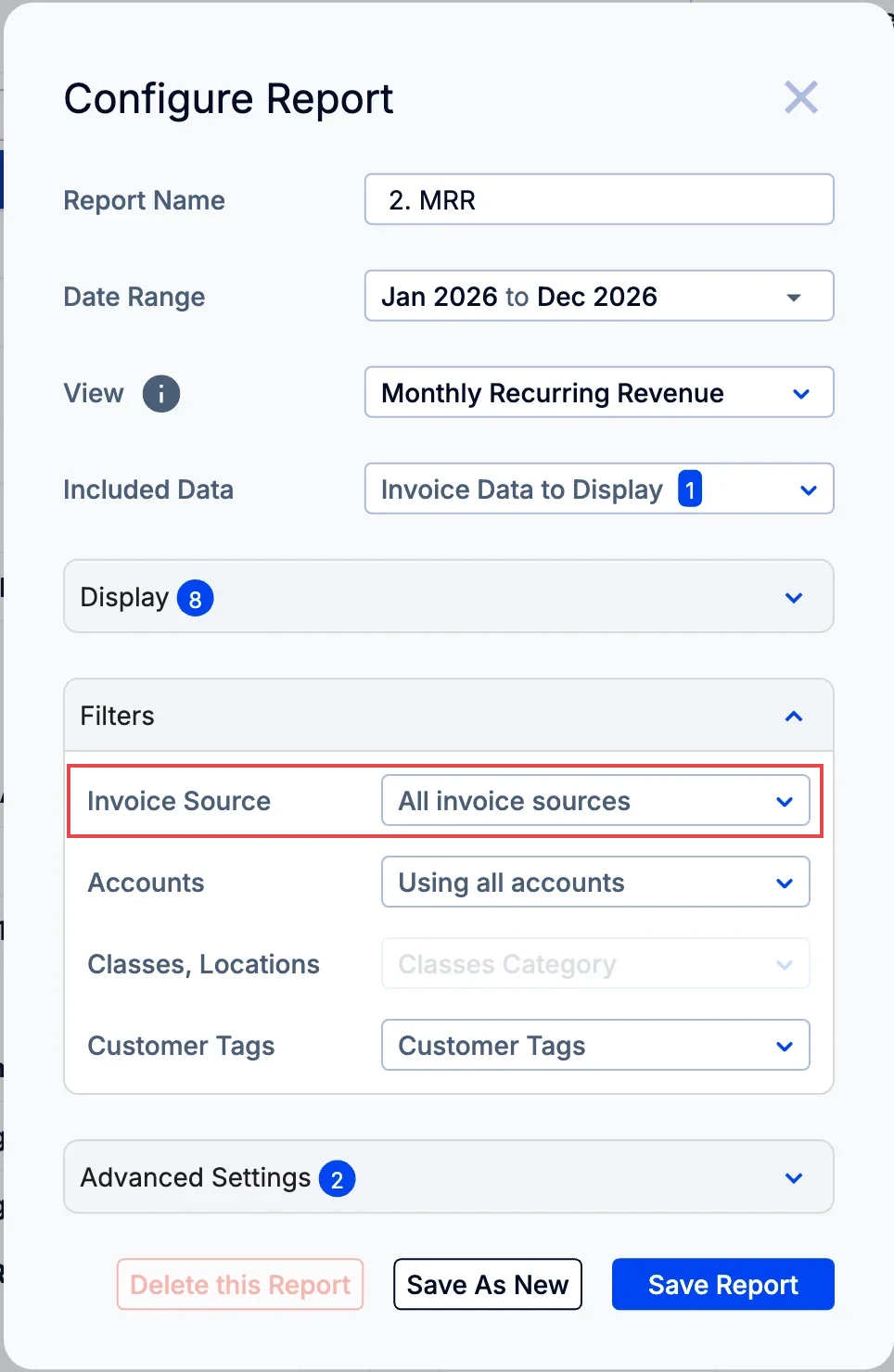
If this is not correct, check the accounts included and save the report:
- On the Customers tab, open the ARR report in the left sidebar (by default, 3. ARR).
- Click Configure Report and open Filters.
- Under Accounts, select the accounts to include.
- Click Save Report.
You can also use the Metric Library to set your own definition of ARR or to create multiple definitions. See How do I create a new metric in the metric library? and How to create a customers page report and use it across ScaleXP.
How to create a new ARR report
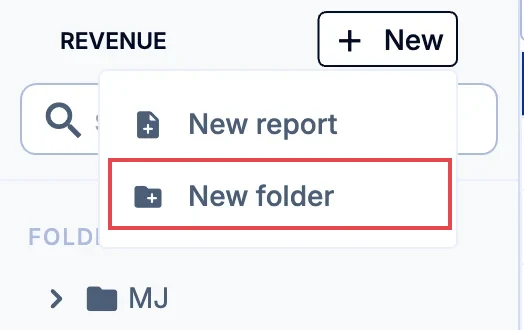
- On the Customers tab, click + New in the left sidebar and select New report.
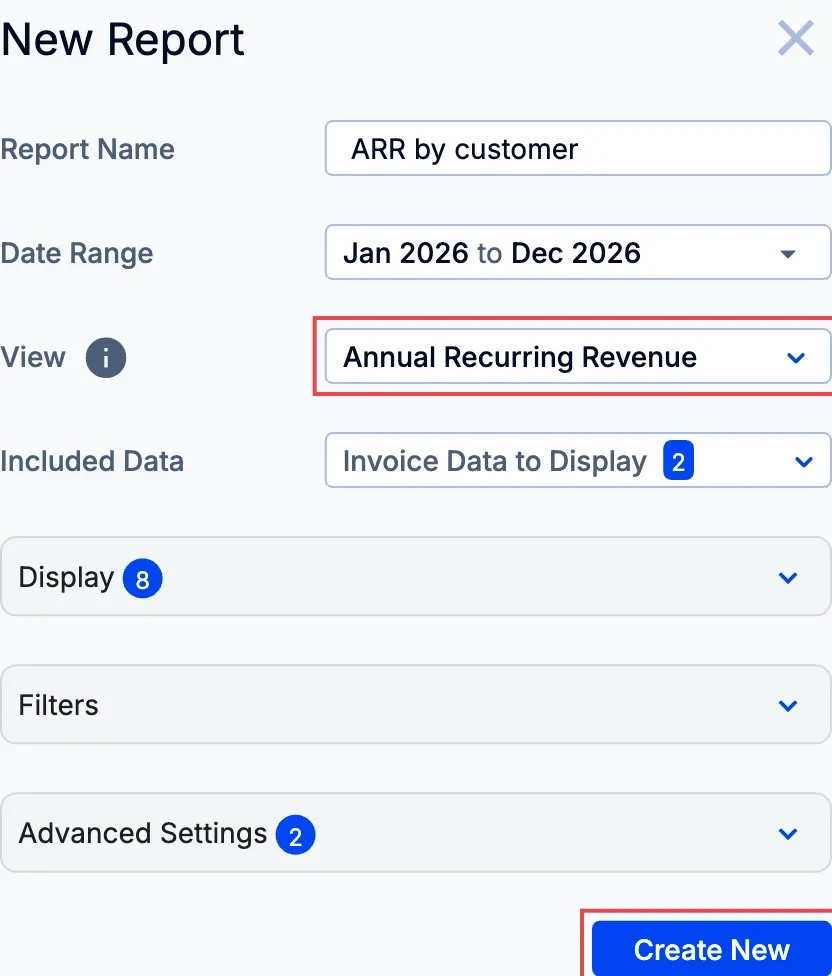
- Enter a Report Name and set the Date Range.
- Set View to Annual Recurring Revenue.
- Under Filters, choose the accounts to include and any other settings.
- Click Create New.
The new report appears in the left sidebar. ARR is MRR multiplied by 12, calculated for each month separately.
The ARR report uses the same rules for revenue allocation and currency conversion as the MRR report. See How to show a full month view of revenue (as used for MRR).
Read about other revenue reporting options in Revenue setup 1: Configure and validate revenue recognition.