The MRR view is on the Customers tab. Most organizations have an MRR report by default, called 2. MRR in the left sidebar.
Reports with a full month view show the full month icon next to the report name. Hover over it to see: Only full months are used for definitions for the New, Lost, Upsell, and Downgraded metrics in this report.
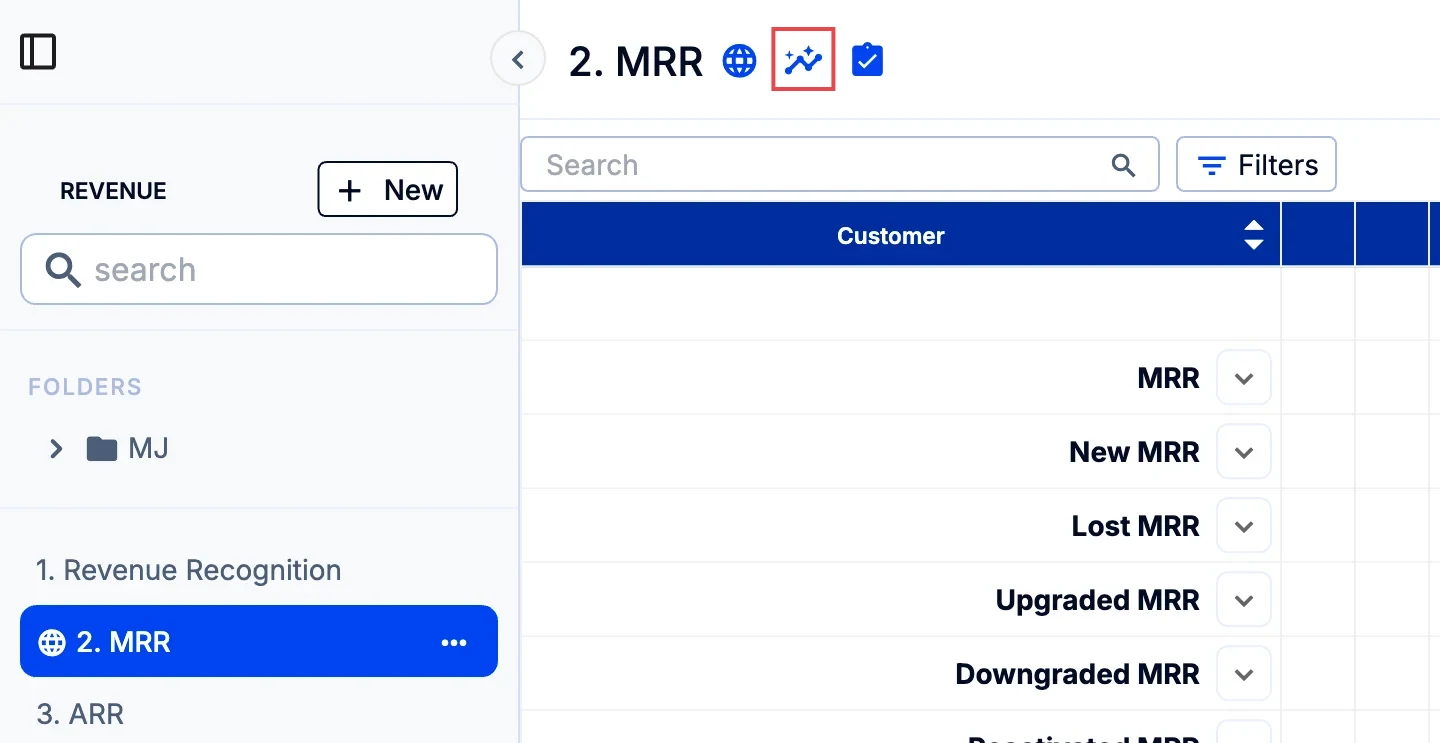
The MRR View reflects a full month of revenue, ignoring partial months and counting full months of revenue only. Thus
- starting months are always included as if they were full months and
- ending months, if partial, are excluded entirely from both revenue and customer count.
In this view:
- New customers are counted and shown at a full month's value in the first month of new sales, even if only part of the revenue is captured in that month's total due to timing;
- Lost customers are counted in the first month of nil or partial month value and valued at a full month of lost revenue, even if some of it was retained in the month lost;
- Upgraded customers are counted in the first month of the new amount, so counted as upgrade only in the first month, even if only a partial month of upgrade, and shown at the full increased amount of revenue in the first month of the change;
- Downgraded customers are counted only in the first month of reduction, even if a partial month, and shown at the fully reduced amount from that month.
This view is usually used for reporting MRR (monthly recurring revenue) and ARR (annual recurring revenue) as it reflects a full month view of all customers.
In translating MRR revenue from foreign currency to the currency of your accounting system, ScaleXP uses the same exchange rate as that used by your accounting system.
In consolidated companies with entities in multiple currencies, MRR revenue is translated from the subsidiary's currency to the parent's company at the exchange rate used in the month of invoice. See FX Rates: What foreign exchange rate is being used?