To review invoices issued in a given month, go to the Journals tab. On Month-End Close, click Open on New Customer Invoices in [month].
Use this page to find a missing invoice. Under Invoices issued in, select the month in which the missing invoice was issued, then search by invoice number or customer name to find the invoice.
On this page, you will see a list of all invoice line items for invoices issued in the month, along with service dates (Start Date, End Date), line amount totals, and revenue allocations by month.
Revenue allocation is split into three categories:
- accrued (for goods & services delivered before the invoice issue date)
- current (delivered in the issue month)
- deferred (for goods and services delivered after the issue month and therefore requiring deferral from revenue recognition)
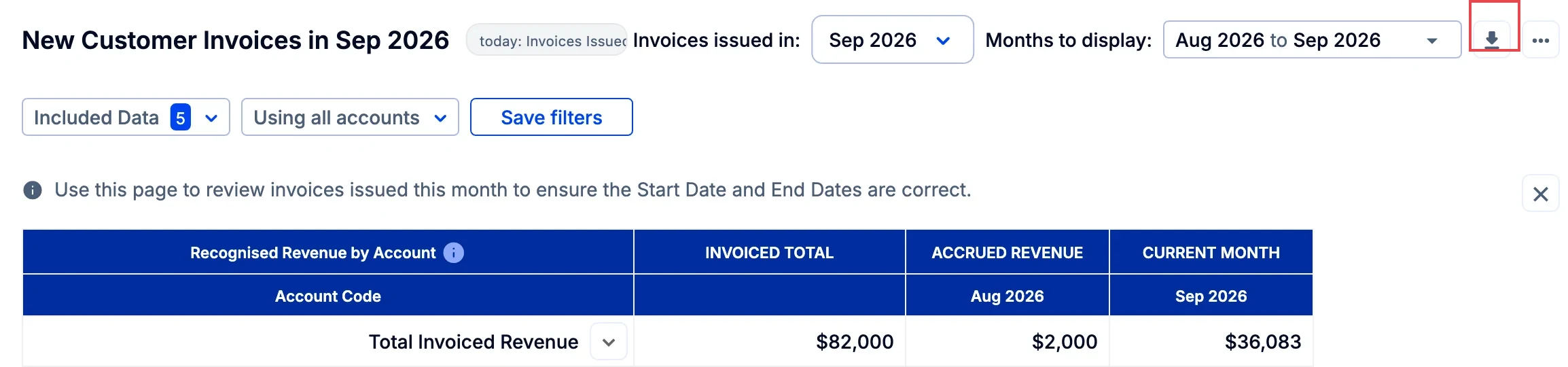
At the top is a summary by account.
You can select different revenue recognition date ranges and filter for one or more accounts. You can also filter by invoice source (for example: generated by the accounting system, manually generated in ScaleXP, or generated in ScaleXP via Stripe).
You can download the full list of invoices and line item detail. Use the download button at the top right of the page.
See other options for reviewing and changing the date in The system has not recognized dates correctly. Why? How can I change them?