Throughout ScaleXP, you'll see reports, dashboards, presentations and metrics refer to MRR (monthly recurring revenue).
The default definition of MRR is calculated from the 'Customers' tab (top navigation) using the report with the globe icon next to it (left sidebar).
Initially, the default MRR report is set as global and will include all revenue accounts. It will consist of a "full month view", that is, a full month of revenue lost or gained anytime during the month being reported.
This article explains how to change which report drives MRR across the system, adjust the accounts that MRR includes, and create multiple MRR reports and definitions.
How to change the default MRR report
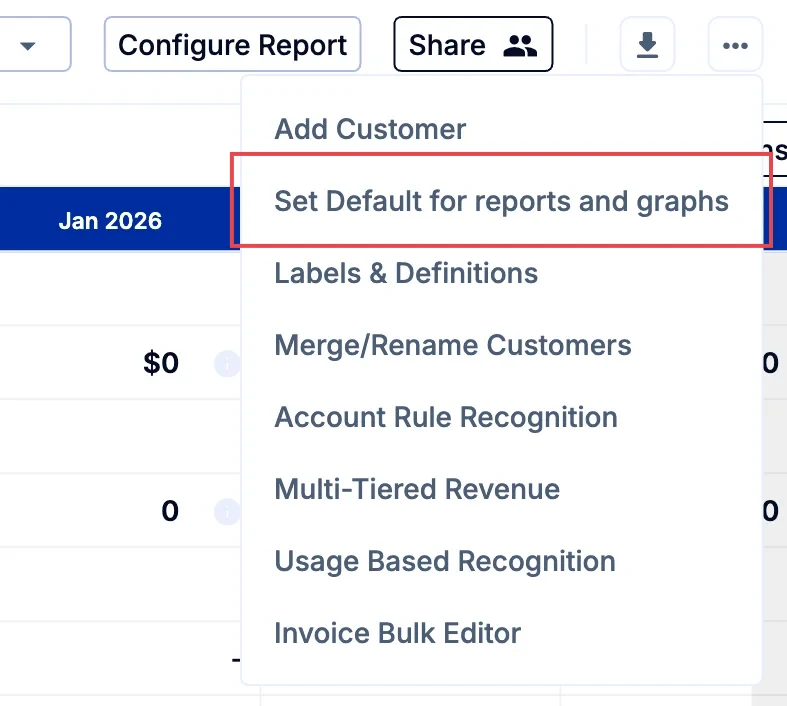
To change which report is the default for MRR, go to the Customers tab and open the report you want to use. Click the three dots at the top right and select Set Default for reports and graphs.
This will use the currently selected report for MRR throughout the system unless modified to select an alternative report or definition.
We do not recommend using a Revenue Recognition or IFRS/GAAP report as the global. This is because the MRR view is the most useful one for purposes of annualizing and other analytics.
How to adjust the default MRR report to include only relevant accounts
To view and adjust the accounts included in the default MRR, go to the Customers tab and open the report with the globe icon (by default, 2. MRR). Click Configure Report, open Filters and choose the accounts under Accounts. Then click Save Report.
For a step-by-step walkthrough of the Accounts filter, including how to remove one-time or non-recurring accounts and how the change flows through to ARR and the dashboards, see How to add or remove accounts from MRR and ARR.
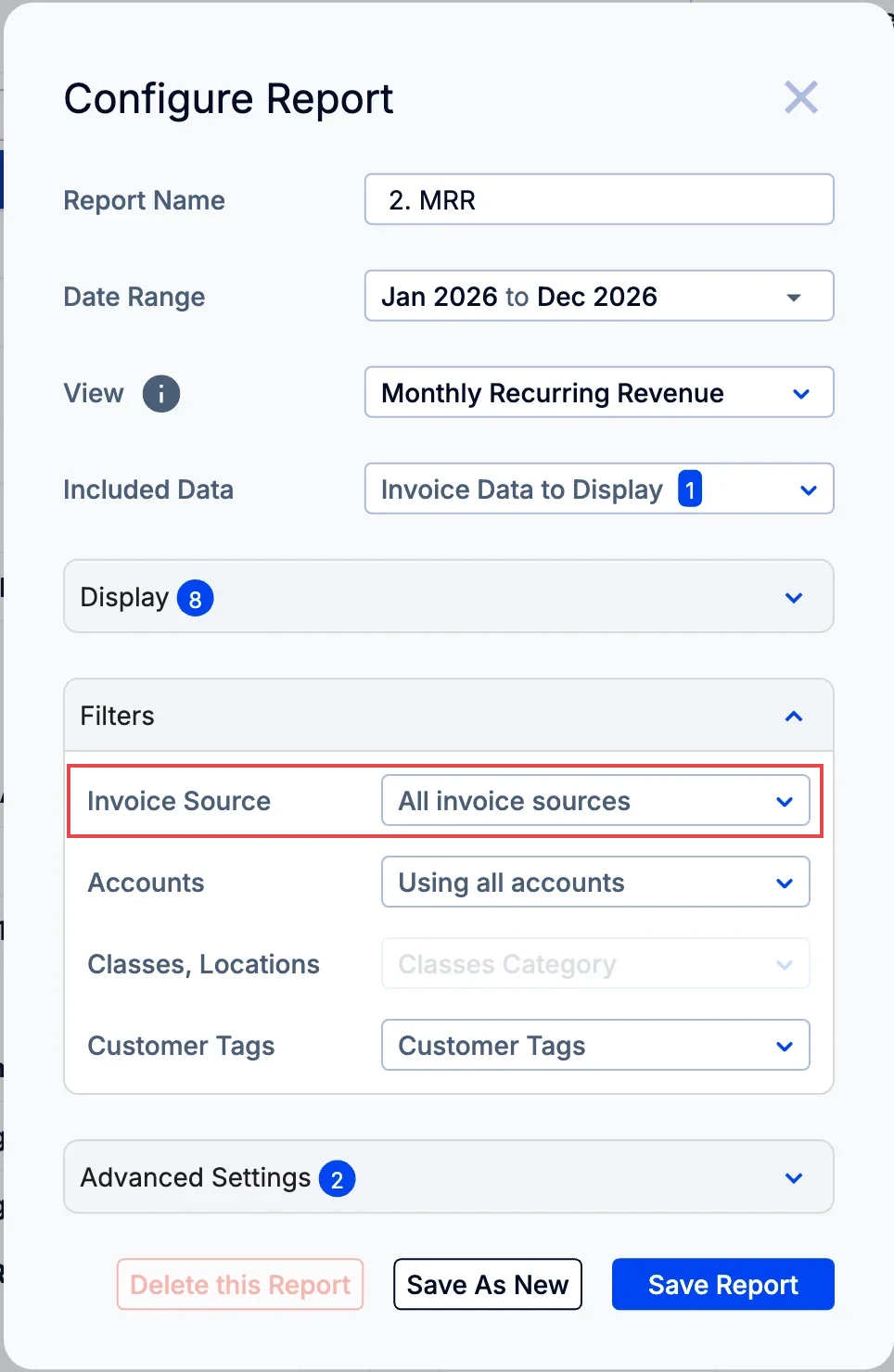
You can also create reports using multiple versions of MRR or other customer page reports. See How to create a customers page report and use it across ScaleXP.
How to create multiple MRR reports and definitions
You can create multiple reports on this page and use whichever as the default but we always suggest having a Revenue Recognition view as well as a full month (MRR) view and using an MRR view as the default.
You can also calculate your own MRR using the Metric Library. See more in How to edit a metric and change how it is calculated.
You may also want to create more than one definition of MRR. To do this, see How to create a customers page report and use it across ScaleXP.