The Late Adjustments step on the Month-End Close page lists every invoice, bill, or date change that affects a month you have already closed, so you can open the report, filter the changes, review what changed, choose how to handle each one, and post the adjustments with your next journal. It covers the deferred revenue, accrued revenue, prepayments, and cost accruals journals.
Run it before you post this month's journals. For an overview of the whole close, see How to use ScaleXP for month end journals.
Part 1 — Open and filter the report
1. Open late adjustments
- Go to the Journals tab. The Month-End Close page opens.
- Under Pre-Journal Checks, click Open on Late Adjustments. The report opens in a new browser tab.
- Check the Month-End Close month at the top right. This is the month you are closing, and the journal that late adjustments are posted in by default.

Note: months before you started posting journals from ScaleXP get a reduced check. To change the month ScaleXP checks from, see How and why to change your journal start date.
To change how the journals behave, click the ⋯ (More options) button next to the Month-End Close month and choose Revenue journal settings or Expense journal settings.
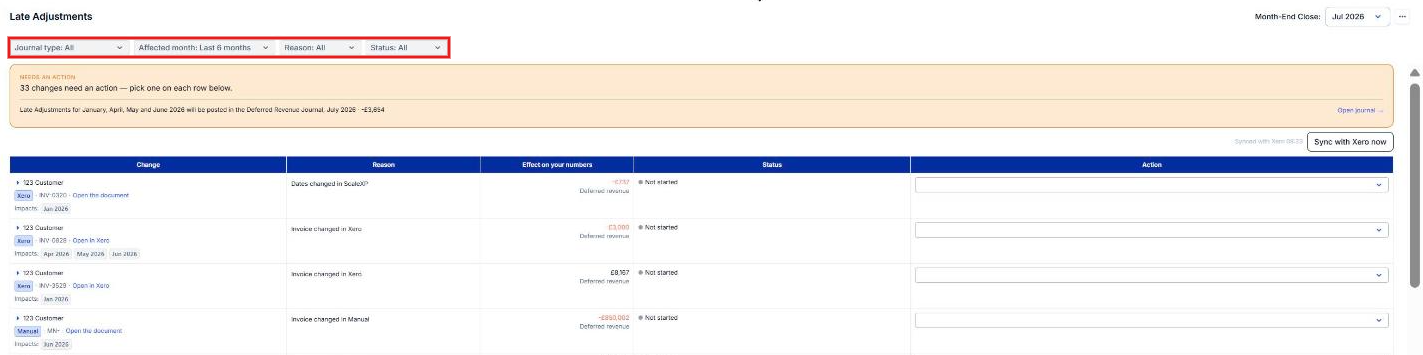
2. Filter the changes
Use the filters above the table to narrow the list:
- Journal type — All, Accrued revenue, Deferred revenue, Prepayments, or Cost accruals
- Affected month — how many closed months to check, from Last month to Last 6 months (the default)
- Reason — what caused the change, such as Invoice changed in Xero, Bill changed in Xero, Amount changed in Xero, Manual journal in Xero, or Dates changed in ScaleXP
- Status — Not started, In progress, or Complete
The banner above the table shows how many changes still need an action, and which journal and month the late adjustments will be posted in, with the total. Click Open journal → to go straight to that journal.
If you have just corrected something in your accounting system, click Sync with Xero now (or QuickBooks) to refresh the list.
Part 2 — Review and resolve each change
1. Review what changed
Each row shows one change:
- Change — the customer or supplier, where the document lives (Xero, QuickBooks, or Manual), the document number, a link to open it, and the closed months it Impacts
- Reason — why ScaleXP flagged it
- Effect on your numbers — the amount and the journal it affects
- Status — where the change is in your review
- Click the arrow next to the customer or supplier name to expand the row.
- Read What changed. It tells you when and where the document was edited, and which closed months no longer match the journals you posted.
- Check Journal lines if posted. These are the debit and credit lines, month by month, that ScaleXP will post if you accept the adjustment.
- To check the source, click Open in Xero or Open the document.

2. Choose an action
- Open the Action dropdown on the row.
- Pick one of the options:
- Fixed in Xero — you have corrected the document in your accounting system. ScaleXP confirms the fix at the next sync.
- Post in the [journal], [month] — post the adjustment with the late adjustments in this month's journal. All closed months stay closed.
- Reopen [months] — post the adjustment in the journals for the original months. This reopens closed months.
- No action needed — leave your numbers unchanged.

Once you choose an action, the status changes to In progress and the row records who decided and when, plus what happens next — for example, Not yet posted, go to the Deferred Revenue Journal, July 2026.

Tip: set the Status filter to Not started to see only the changes you still need to decide on.
If you are unsure whether to post in the current month or reopen, see How to set journals to IFRS or GAAP rules for backdated revenue.
Part 3 — Post the adjustments
1. Post with your month-end journal
- Click Open journal → in the banner, or open the journal from the Month-End Close page.
- Review and post the journal as usual. Changes you set to Post in… are included as late adjustments. For the posting steps, see Deferred revenue 2: Review and post the journal.
- Back on the Month-End Close page, update the Late Adjustments step's status so your team can see it is done.
On each journal page, the Late adjustments awaiting review system check flags any change you have not yet handled.
Related articles
- How to use ScaleXP for month end journals
- Deferred revenue 2: Review and post the journal
- Accrued revenue 1: Add accrued revenue
- Prepayments 2: Review and post the journal
- Cost accruals: Add, release, and post accruals
- How and why to change your journal start date
- Why does my deferred revenue balance not reconcile as expected?
- How to find missing invoices and stop revenue leakage
- Revenue journal FAQs: Answers to common questions