To include tracking codes or classes in your deferred and accrued revenue journals:
- Open a revenue journal from Month-End Close on the Journals tab.
- Click the three dots at the top right and select Revenue Journal Settings.
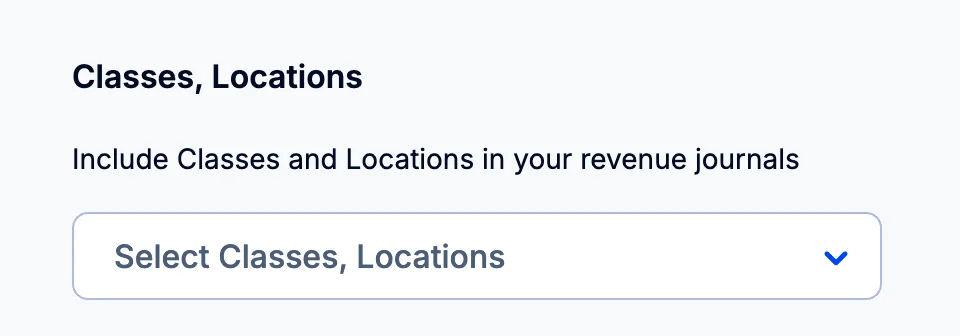
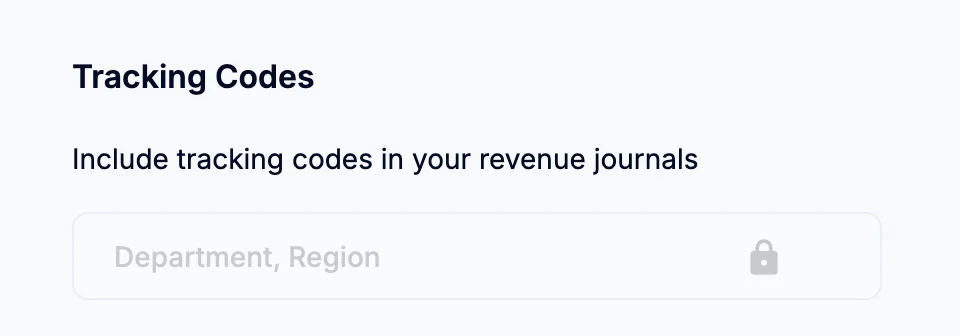
- Under Classes, Locations (QuickBooks) or Tracking Codes (Xero), select the ones to include.
- Click Save.
See Revenue setup 3: Choose your journal settings.
Want one journal line per customer as well? Switch on Journals by customer in the same settings panel — see How to set up revenue journals by customer.
QuickBooks:
Xero:
Once you have selected your tracking codes or classes, ScaleXP will automatically propose journals including those designations, based on the information used in your invoiced revenue in the accounting system.
Note that changes to tracking codes or classes must be done via your accounting system.
Once synced with ScaleXP, changes to invoices will automatically update in ScaleXP along with suggested deferred revenue journals.
Related articles
How to report on Xero tracking codes or QuickBooks classes in ScaleXP
Deferred revenue 2: Review and post the journal