To create or add a ScaleXP entity without also adding a live accounting integration, use the ScaleXP Google Sheets for Trial Balances to add data.
Note that this approach can also be used to set up a dedicated “consolidation adjustments” entity. See How to add consolidation adjustments.
Data added via the Trial Balances connection will be available for use in consolidated reporting including all relevant metrics, reports, dashboards, and presentations.
How to add an entity via the Google Sheets trial balance connection.
Step 1. Set up the new entity in ScaleXP.
Click the entity dropdown at the top right of any page and choose Add new entity at the bottom of the list. For screenshots of every option, see How to add a new entity in ScaleXP.
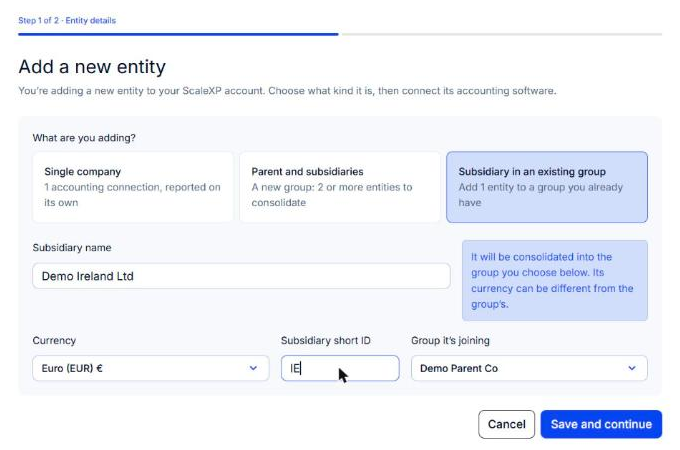
- To add the entity to a group you already have, choose Subsidiary in an existing group, enter the Subsidiary name, Currency and Subsidiary short ID, and select the group under Group it's joining. ScaleXP links the entity to the group for you.
- For a stand-alone entity, choose Single company and enter the Company name, Currency and Sector.
- Click Save and continue.
Step 2. Choose the trial balance connection
- On the Connect your data step, click Connect next to the entity.
- Select Trial balance sheet.
- Connect to Google Sheets or Excel. The steps below use Google Sheets.
Step 3. Connect to Google Sheets Trial Balance sheet
Check that you are in the new entity (its name shows in the dropdown at the top right) and on Load Data > Google Sheets - Trial Balances.
Step 4: Copy the Google Sheet Template
Step 5: Enter your data
Step 6: Go back to ScaleXP and connect the Google Sheet.
Don't forget to share your GoogleSheet with anyone who might need to edit it
Sharing permissions for the Google Sheet operate independently from sharing permissions for ScaleXP and, by default, only the creator of the Google Sheet will be able to edit it.
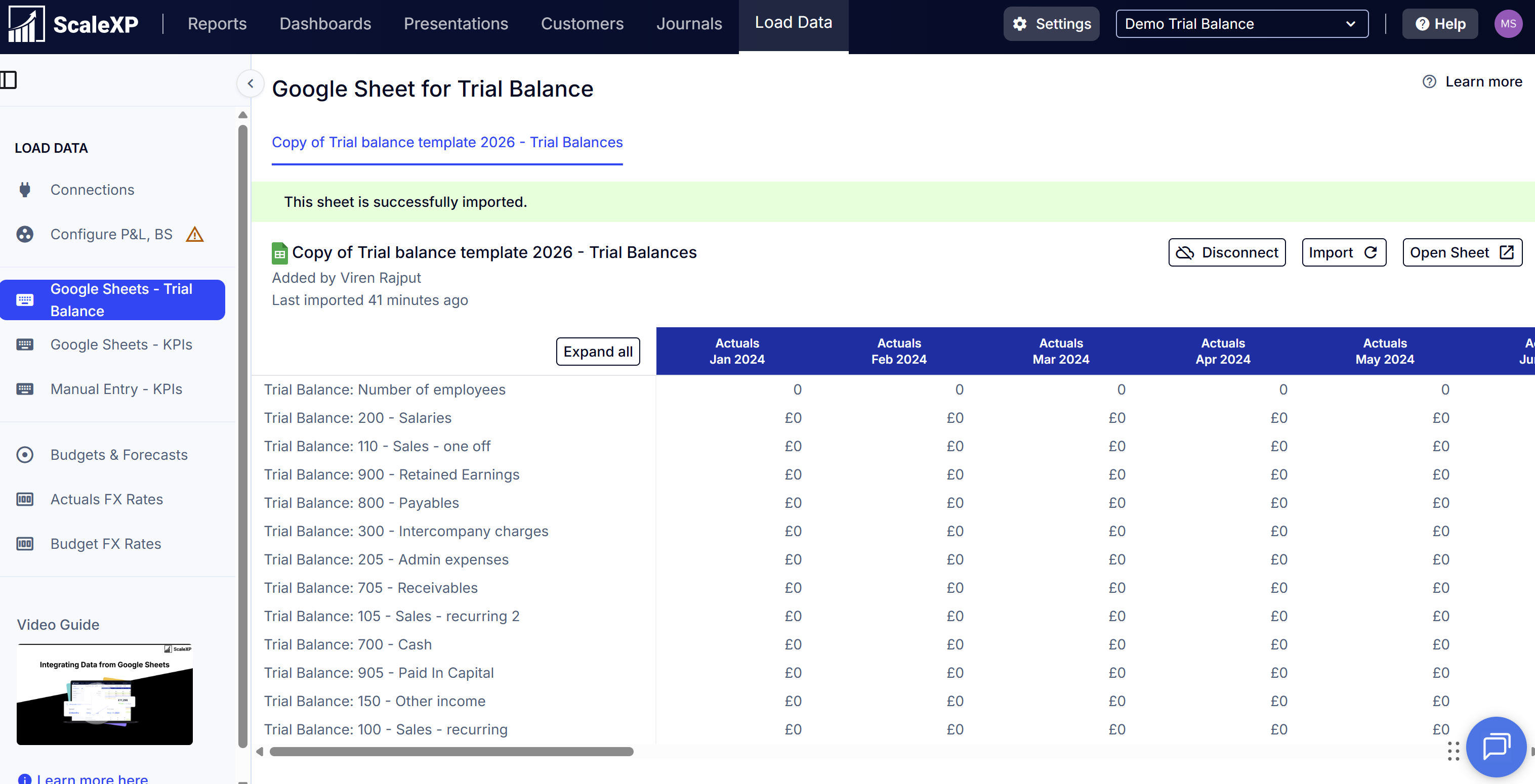
Step 7. View your data. From here you can
- sync ("Import")
- open the Google Sheet to make changes and add data
- disconnect to add a different google sheet
Step 8. Configure your data
If this is part of a consolidated company:
- If you chose Subsidiary in an existing group in Step 1, the entity is already part of your consolidated organization and its data flows into group reporting as soon as the trial balance is connected.
- If already part of a consolidated setup in ScaleXP, follow the steps in How to configure your P&L and Balance Sheet in ScaleXP (consolidated company).
- If this entity will be used for consolidation adjustments rather than as a normal operational subsidiary, follow the steps in How to add consolidation adjustments to set up the adjustment accounts and finalize the P&L / Balance Sheet mapping.
If this is a stand alone entity, see How to configure your P&L and Balance Sheet in ScaleXP (single company).
Done! Now you are ready to set up your reporting.
See these articles to help you get started:
- Getting started with Reports: how to create and edit a report
- Getting started with Dashboards
- Getting started with Presentations: How to create a pack for a meeting; How to create and edit a presentation
- What is the ScaleXP Metric Library?
- How to add live metrics through Google Sheets
- How to add consolidation adjustments
- How to add a new entity in ScaleXP