Accrued revenue records income you have earned but not yet invoiced. Each month, add it here, release it in Accrued revenue 2, and post the journal in Accrued revenue 3. First time? Complete Revenue setup 2 and Revenue setup 3 first.
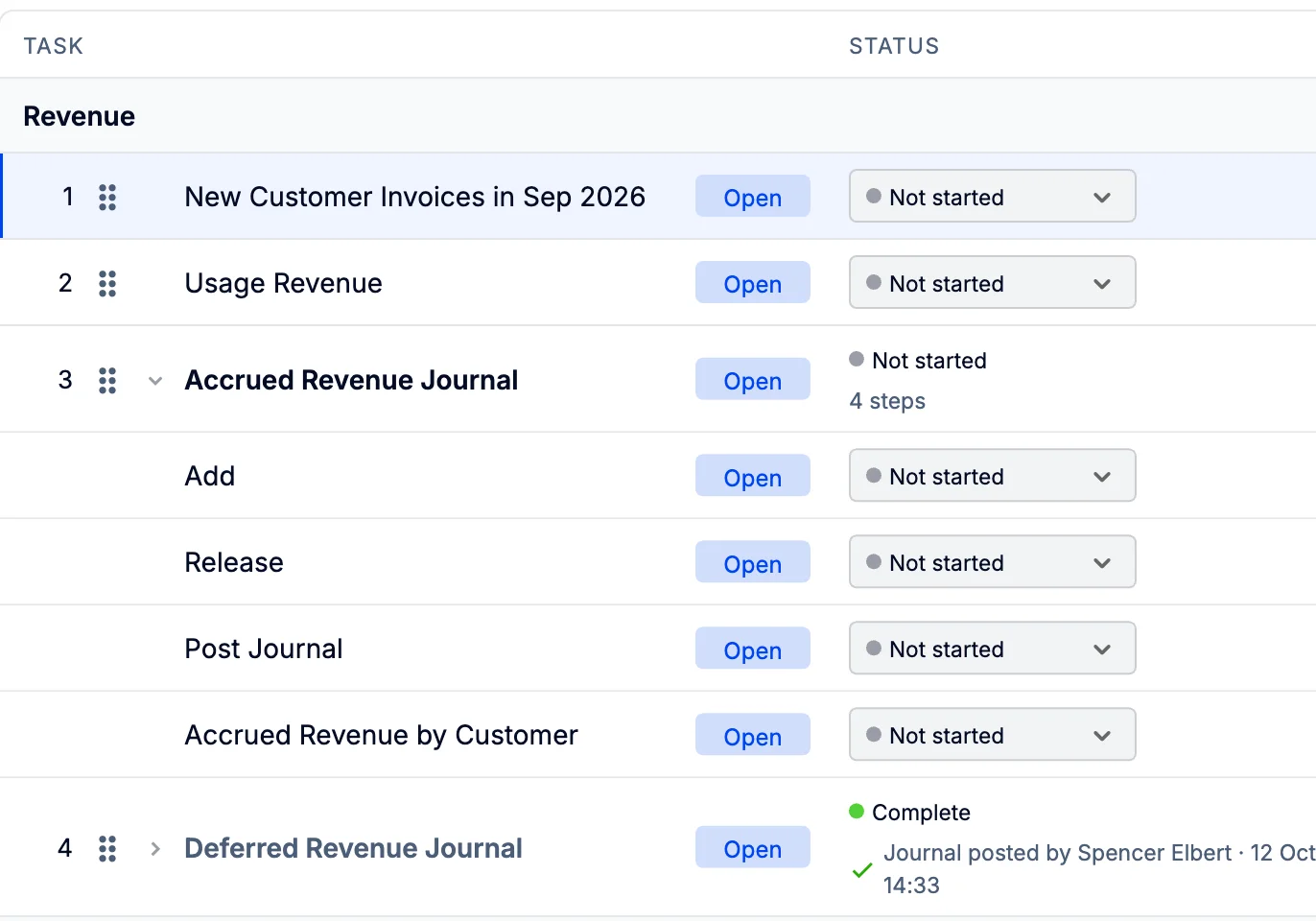
Accrued revenue is found on the Journals top tab. The Month-End Close page groups it under Revenue › Accrued Revenue Journal as three steps - Add, Release and Post Journal. Click Open on a step to go to its page; the Next button at the top right of each page takes you to the next step, and the Next action card at the top of the Month-End Close page tells you which step needs your attention.
Revenue identified as accrued is included in recognized revenue throughout ScaleXP reports.
Before you start, make sure your revenue recognition is correct and that all invoices issued in the month have been reviewed for the right date ranges - see Revenue setup 1: Configure and validate revenue recognition.
1. Open the Add Accrued Revenue page
Open the Add step of the Accrued Revenue Journal from the Journals tab. The page is called Add Accrued Revenue.
ScaleXP reads every issued and draft invoice for the months displayed, including future-dated invoices, and identifies revenue earned before the invoice date. Draft invoices saved in your accounting system are pulled in too, so you can accrue the revenue before the invoice goes out - and once the invoice is issued, the accrual is released automatically.
2. Review the system checks
The banner at the top of the page tells you how many items ScaleXP found to review and when it last scanned your data.

- Click View items to expand the checks. ScaleXP lists draft documents to review and issued documents to review separately - each is an invoice where revenue was earned before the invoice date.
- Expand a check to see the customer, invoice number, whether it is a draft or issued invoice, the amount and the months in which revenue was identified. Separating drafts from issued invoices helps you spot what is missing or wrong - for example, a draft invoice that should already have been issued, or a date range that needs correcting in revenue recognition.
- Add or remove each one on the customer list below, as described in section 4.
3. Use the filters, summary and customer list
Use the controls at the top of the page to choose what is shown:
- Months to display sets the months shown in the tables.
- Included Data controls which documents are read - Issued, Draft, Manual Accrued and Future repeating. Keep Draft checked to accrue from draft invoices.
- Using all accounts filters by revenue account, and Save filters keeps your choices for next time.
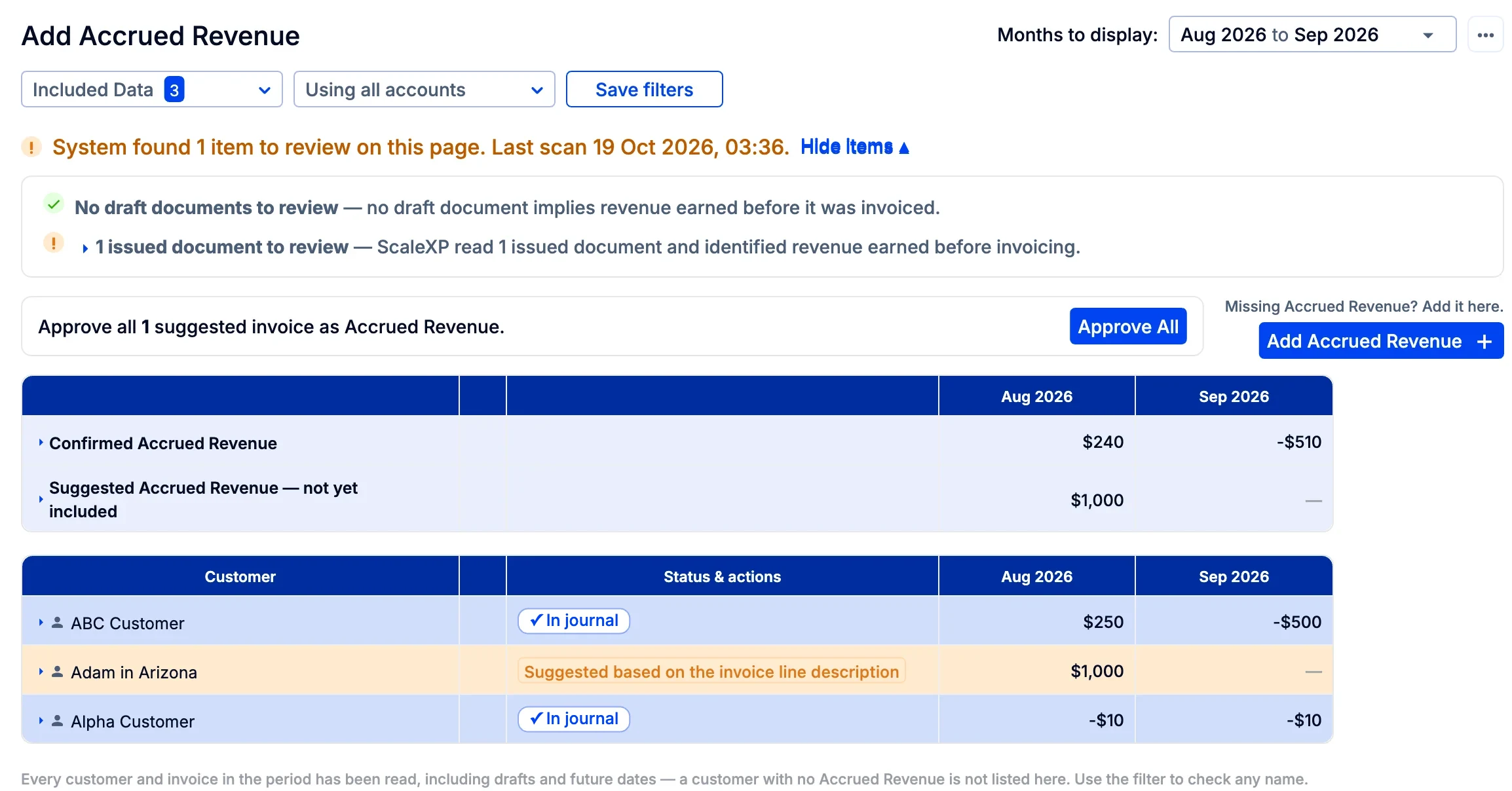
Rows are color-coded: orange is likely accrued revenue that ScaleXP suggests but you have not yet confirmed, blue is accrued revenue already in the journal, and white rows are invoices with no accrual.
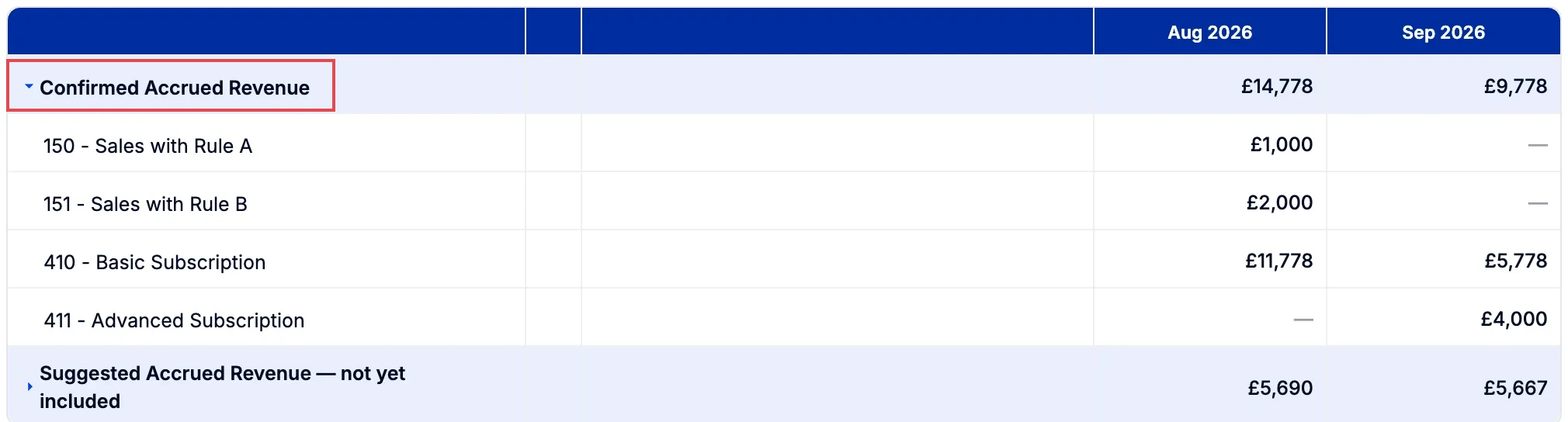
The summary table above the customer list shows Confirmed Accrued Revenue (in the journal) and Suggested Accrued Revenue - not yet included for each month, so you can see how much is still waiting for a decision.
Click on the arrow in the summary to see amounts by account code.
4. Accrue from draft and issued invoices
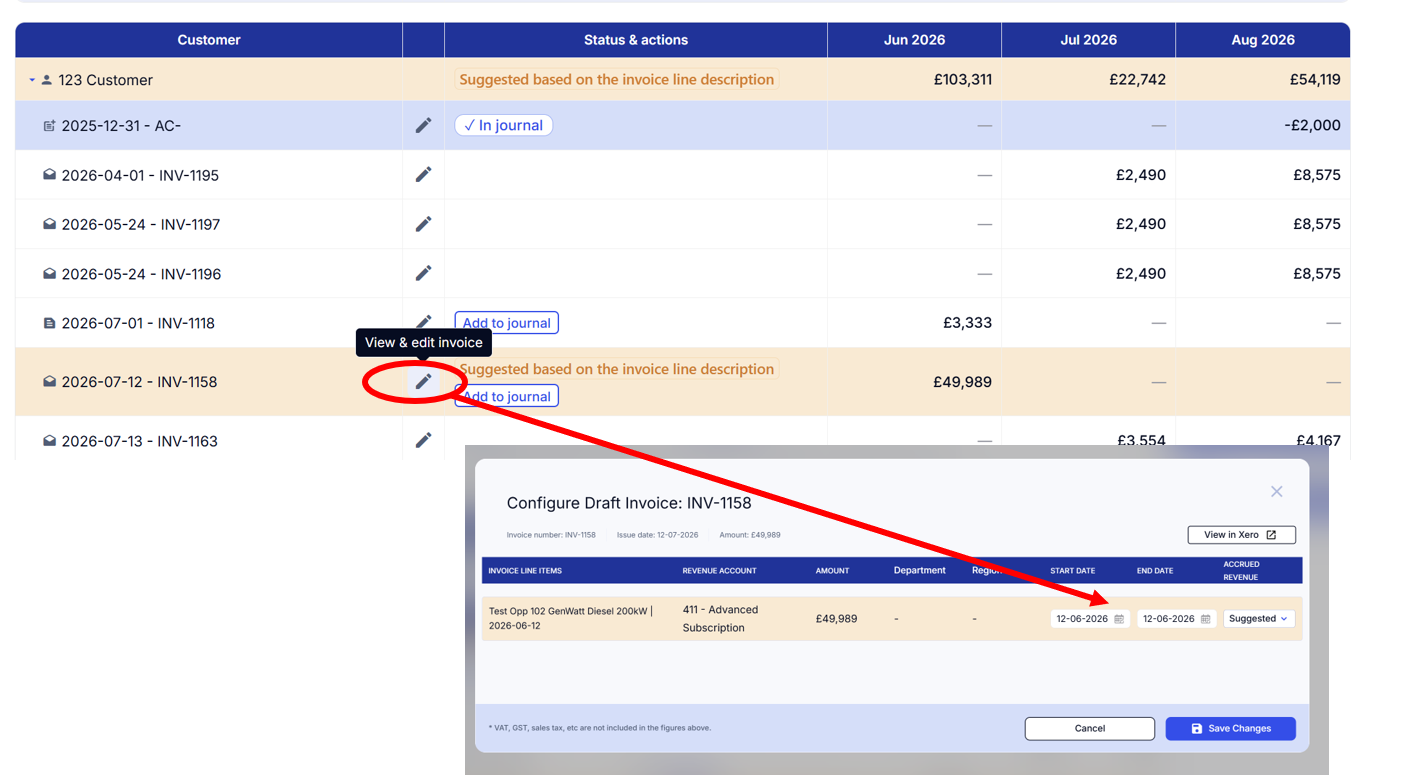
- Expand a customer row to see its invoices. Suggested accruals are marked Suggested based on the invoice line description and shown in orange.
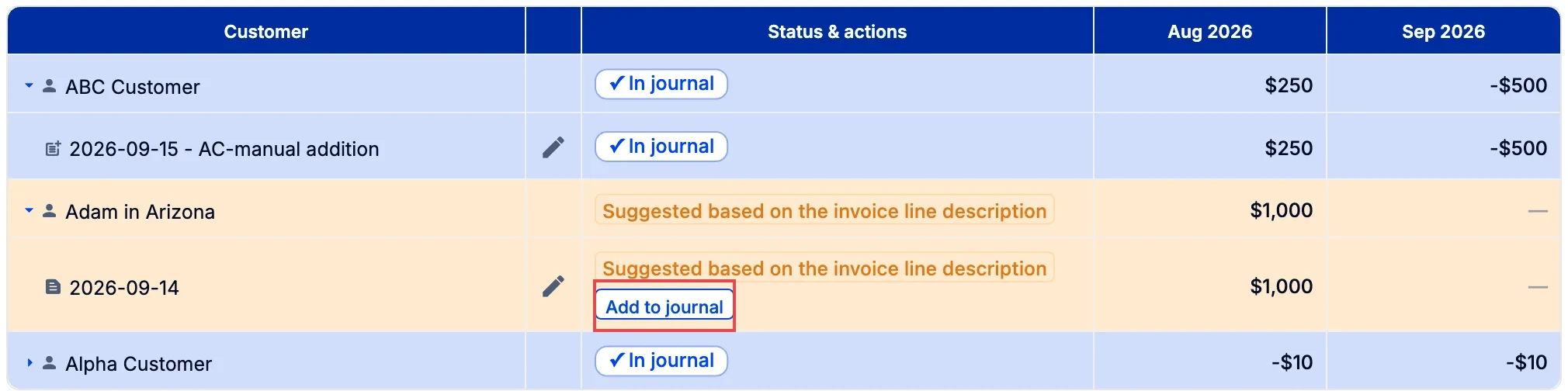
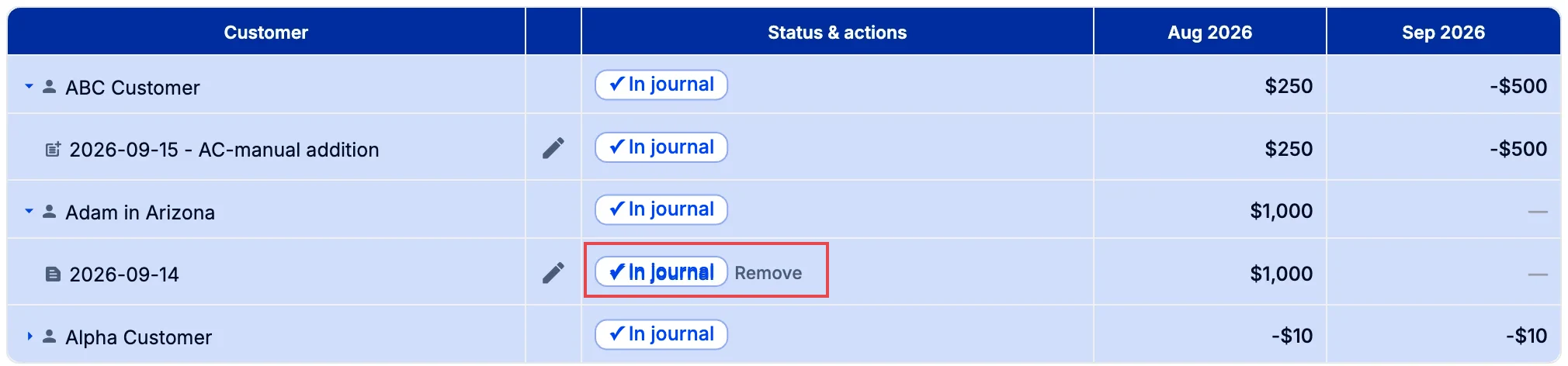
- Click Add to journal on an invoice to accrue it. The row turns blue and shows ✓ In journal. To take it out again, click Remove next to ✓ In journal.
- To check or correct the recognition dates behind an invoice, click the pencil icon to open Configure Invoice. Here you can edit the Start date and End date of each line item and set Accrued revenue to Included or Excluded for each line, then click Save Changes. View in Xero (or QuickBooks) opens the source invoice.
5. Approve all suggested invoices at once
If you have a large number of invoices with back-dated revenue, you can accept every suggestion in one go.
- On the Add Accrued Revenue page, set Months to display and Included Data to cover the invoices you want to include.
- Click Approve All in the bar that reads "Approve all N suggested invoices as Accrued Revenue".
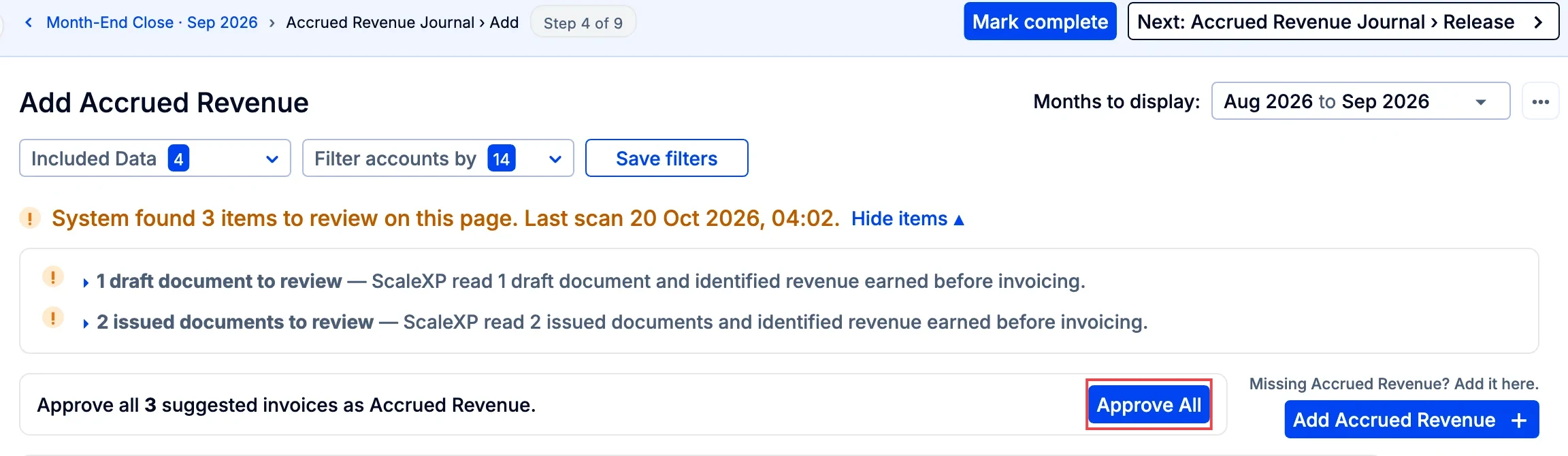
Every suggested invoice in the displayed months moves into the journal and turns blue.
6. Add accrued revenue manually
Use manual accrued revenue for confirmed revenue that has not yet been invoiced - not even as a draft.
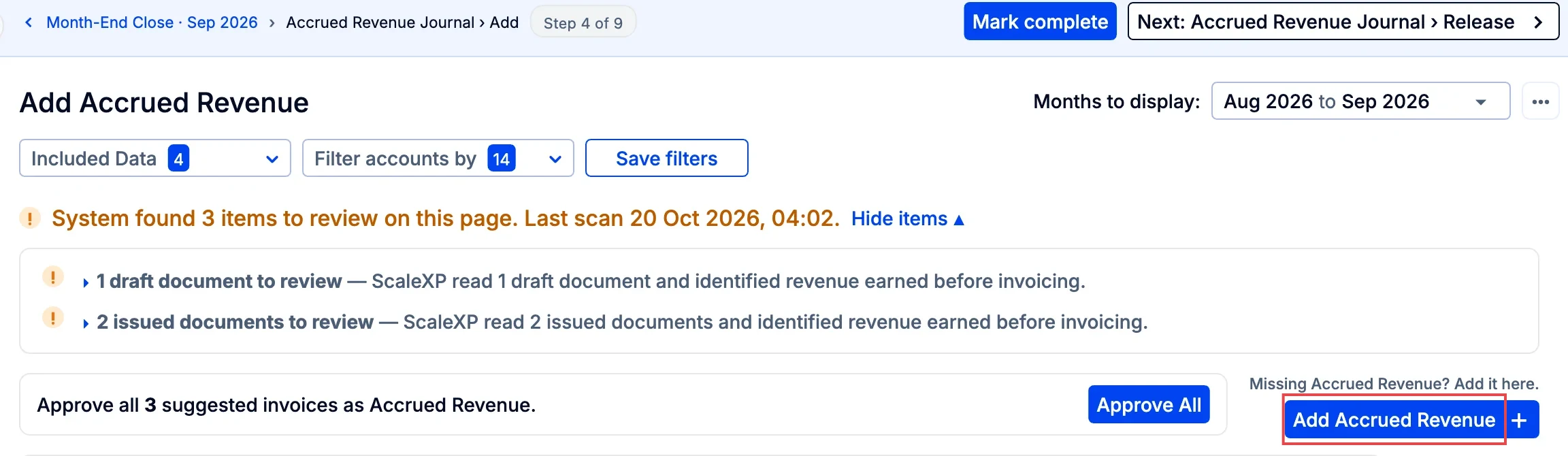
- Click Add Accrued Revenue + at the top right of the page.
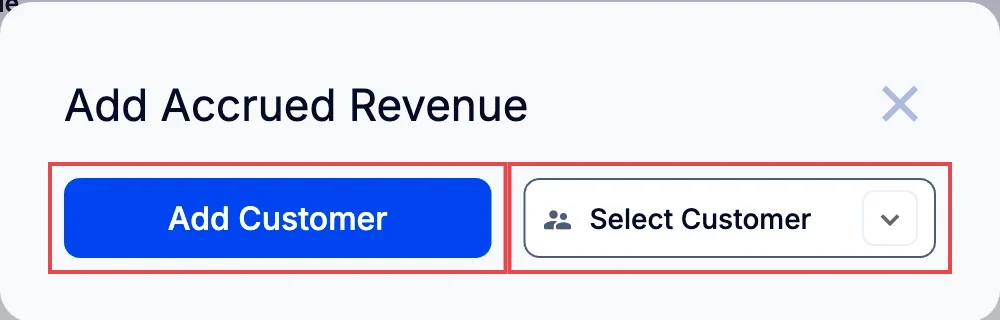
- Choose Select Customer to pick an existing customer, or Add Customer to create a new one.
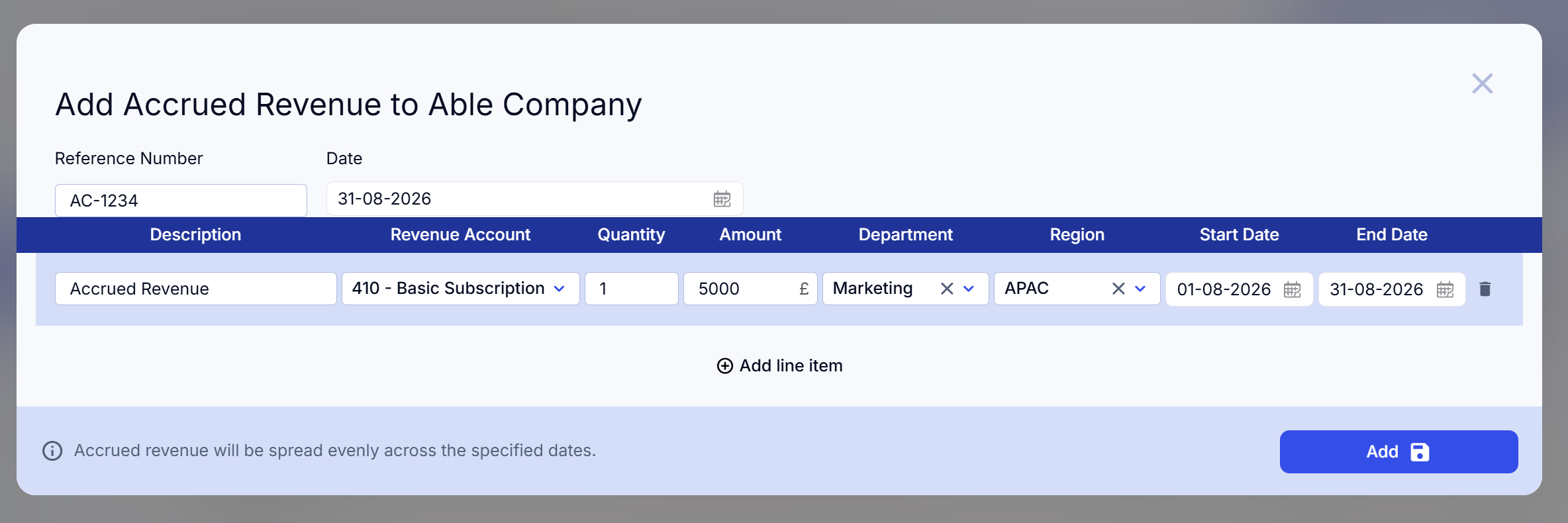
- Enter a Reference Number and the Date of the accrual. The reference starts as AC-, but you can change it to anything you like.
- For each line, enter a Description, choose the Revenue Account, and set the Quantity, Amount, Start Date and End Date. Add Department or Region if you use tracking codes, and click + Add line item for more lines.
- Click Add.
Accrued revenue is spread evenly across the start and end dates you enter. It appears in recognized revenue in ScaleXP in addition to the invoiced revenue from your accounting system, and it is listed on the page with its reference.
Manual accrued revenue is the one type you release yourself, when the invoice is issued or gradually over several months. See Accrued revenue 2: Release accrued revenue.
You can also use manual accrued revenue to adjust revenue recognition, for example when recognizing a free period over the life of a contract. See Revenue recognition for multi-year contracts, free periods, and extensions.
When you have finished, click Next: Accrued Revenue Journal › Release at the top right.