Change the figures in a budget you uploaded to ScaleXP, add months, and save, download or replace it — without re-uploading from Excel.
Which budgets can you edit here? Any budget you uploaded using the ScaleXP template — see How to add a budget or forecast.
Other budgets are updated at their source:
- Xero or QuickBooks budgets — edit them in your accounting system, then sync
- Consolidated budgets built from subsidiaries — edit each subsidiary's budget (see How to add a budget to a consolidated company)
1. Go to the budgets & forecasts page
All your budgets are managed from one page in ScaleXP.
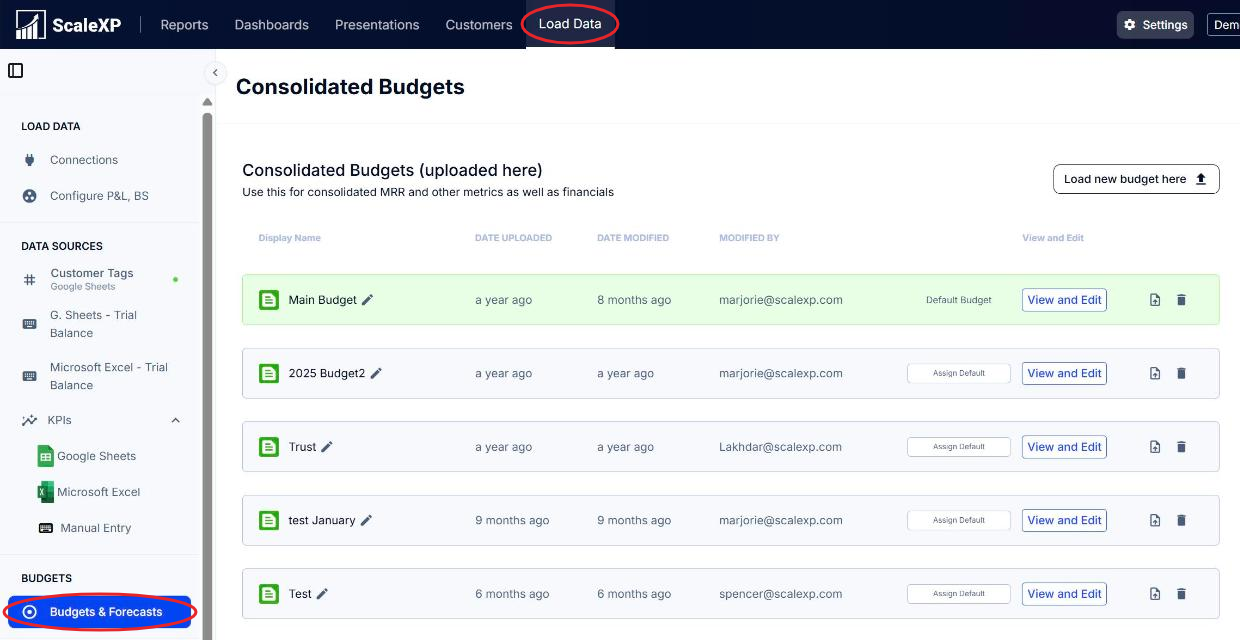
- Click the Load Data tab in the top bar.
- Click Budgets & Forecasts in the sidebar on the left, under Budgets.
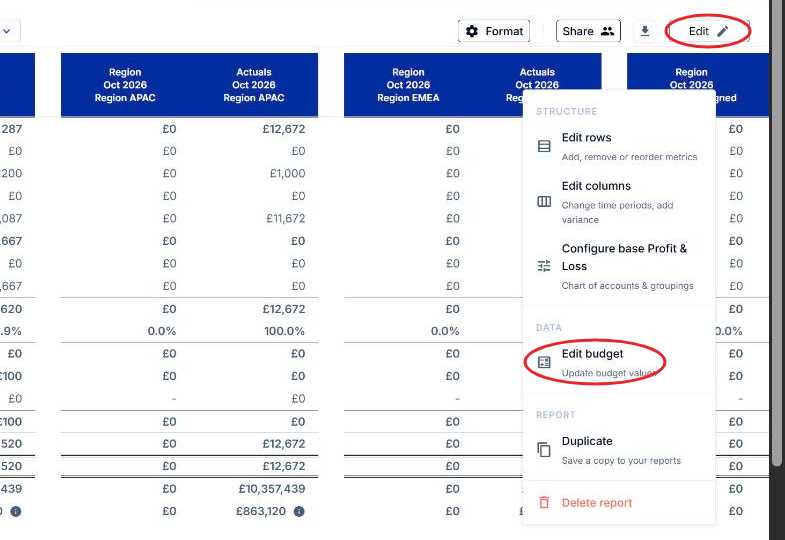
Shortcut from a report: click Edit, then Edit budget. The Budgets & Forecasts page opens in a new tab.
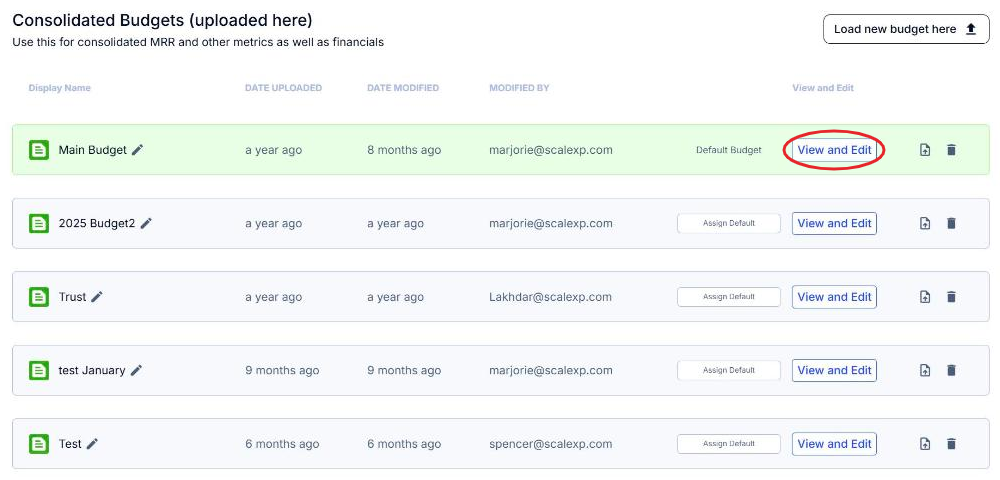
Uploaded budgets are listed under:
- Manually Loaded Budgets & Forecasts — single company
- Consolidated Budgets (uploaded here) — consolidated company
2. Open the budget
- Click View and Edit next to the budget.
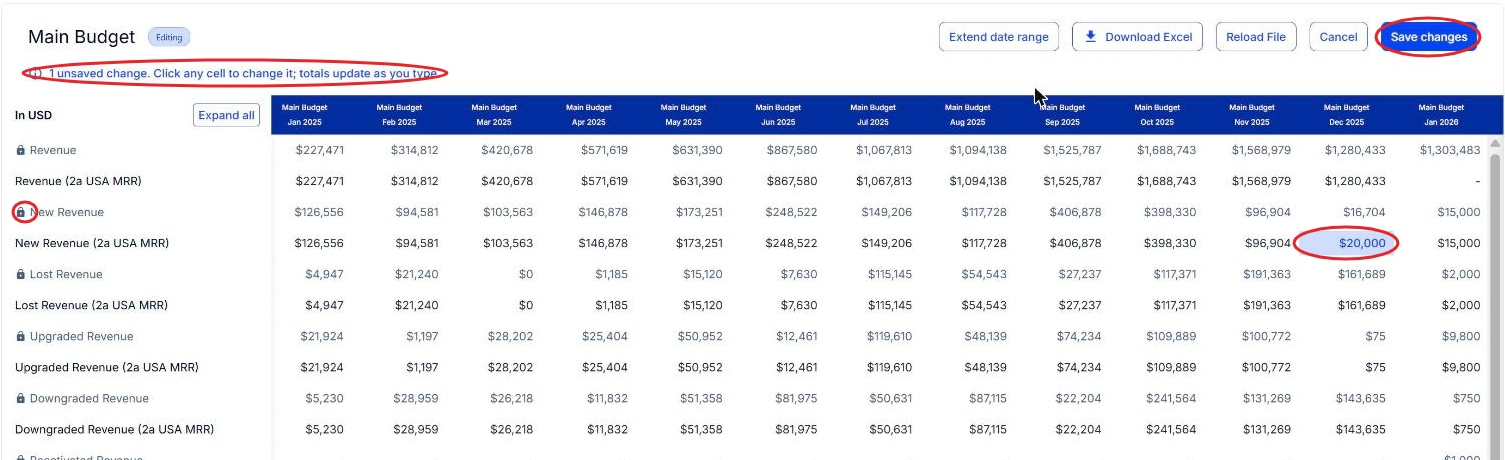
The budget opens ready to edit, with one column per month. Click Expand all to see every subgroup and account.
3. Change figures
- Click any cell and type the new figure.
- Press Enter to move down a row, or Tab to move to the next cell.
- Repeat for any other cells you want to change.
Edited cells stay highlighted until you save, and the message above the table shows how many unsaved changes you have.
Metric lines such as MRR, new customers and lost or churned customers are budget targets for a revenue configuration, and you can edit them like any other line. The name in brackets after the metric, for example New Revenue (2a USA MRR), is the revenue configuration the target belongs to. Lines marked with a padlock belong to a revenue configuration that has since been deleted, so they are shown for reference only and are not filled in when you extend the date range; to replace them, upload a new Excel file. To add metrics that aren't in the budget yet, see How to add and change budgets for MRR, churn, customer count, and other metrics.
4. Extend the date range
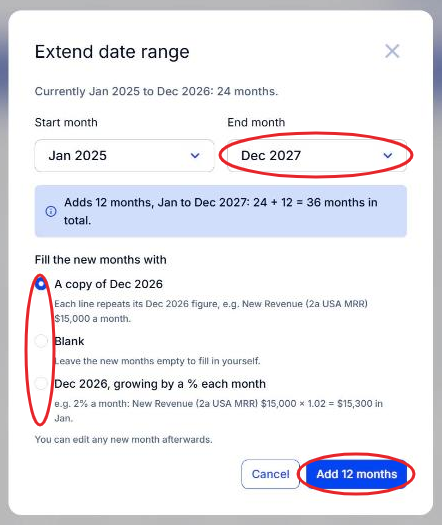
- Click Extend date range. The dialog shows the budget's current range, for example Currently Jan 2025 to Dec 2026: 24 months.
- Choose an earlier Start month or a later End month. ScaleXP shows how many months will be added and the new total.
- Under Fill the new months with, choose one of:
- A copy of [last month] — each line repeats its last month's figure
- Blank — the new months are left empty for you to fill in
- [Last month], growing by a % each month — each line grows from its last month's figure by the percentage you enter
- Click Add [number] months.
Extend date range only adds months. To shorten the budget or change its start and end dates, use Reload File to replace the whole budget with a new upload — see Alternative: Replace the whole budget below.
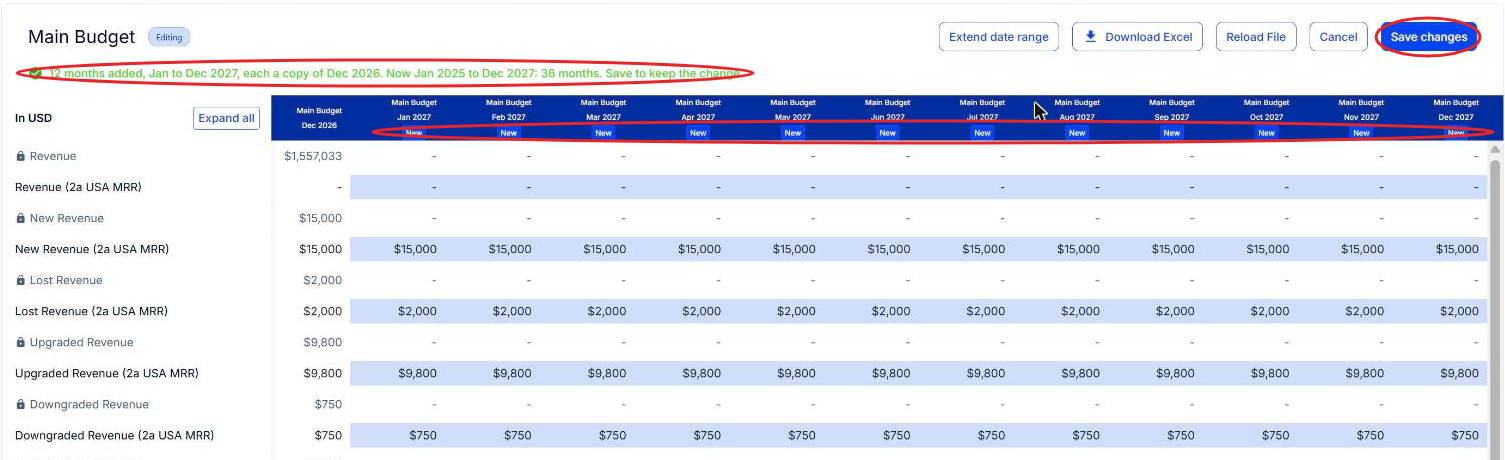
The new months appear marked New and highlighted, and you can edit them straight away. Metric lines such as MRR follow the same fill choice, and cash in bank and KPI lines are filled the same way too, so check those lines before you save. Nothing is saved until you click Save changes.

5. Save or cancel your changes
- Save changes — saves your edits and any new months
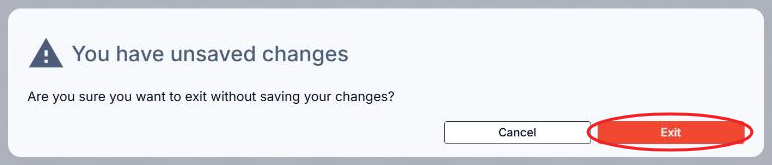
- Cancel — returns to Budgets & Forecasts; if you have unsaved changes, click Exit to discard them

Nothing is saved until you click Save changes. Once saved, the updated budget flows through to every report, chart, dashboard and presentation that uses it, and the Date modified and Modified by columns on the Budgets & Forecasts page show when the budget was last changed and by whom. If a report doesn't show your changes, see Why can't I see my budget? Why is my budget wrong or incomplete?.
6. Download the budget
Click Download Excel to download the budget as an Excel file.

Alternative: Replace the whole budget
Instead of editing individual cells, you can replace the whole budget with a new upload. Use this to shorten the budget, change its start and end dates, or add accounts, metrics or customers tab reports that aren't in the budget yet.
- Open the budget with View and Edit and click Reload File.

- In 1. Choose Budget Metrics, check the categories and metrics to include — the budget's current metrics are already selected — then click Continue.
- In 2. Download Template, set the date range and download the Excel template.
- Fill in the template, then upload it in 3. Upload Template.
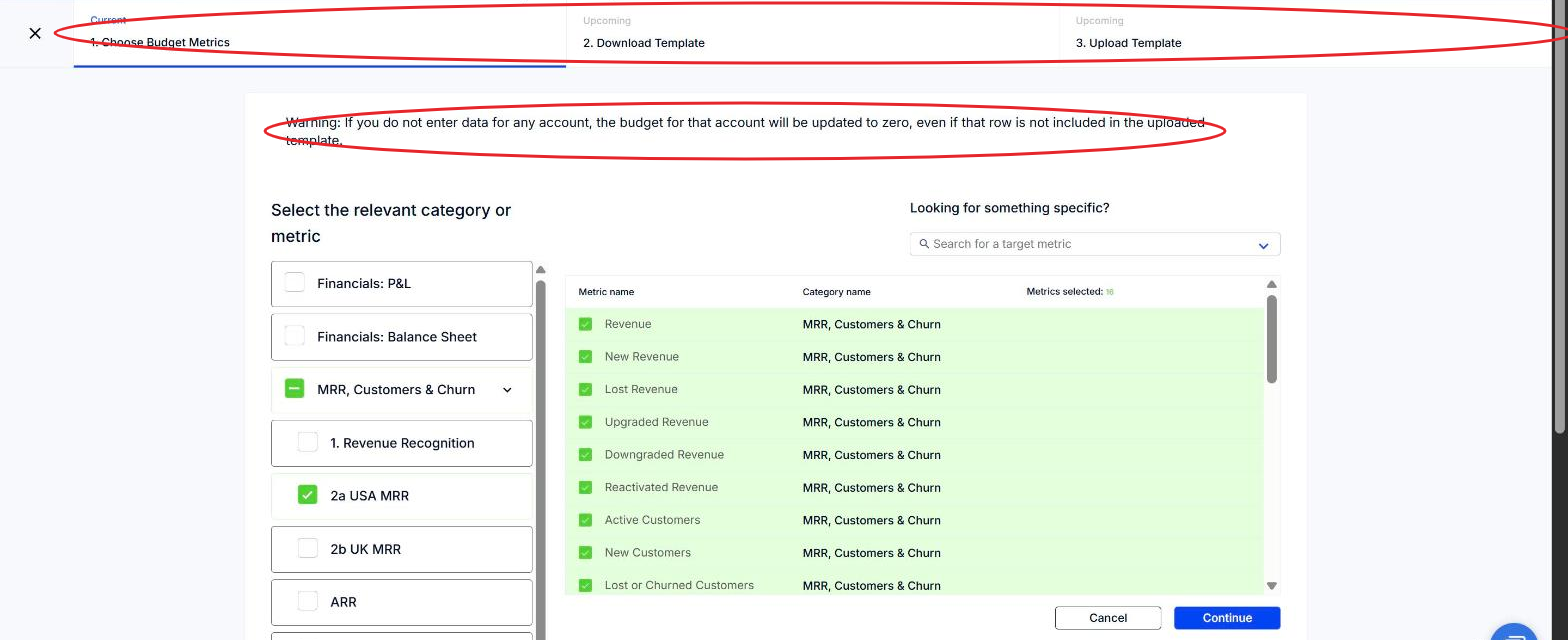
The new upload replaces the existing budget. Any account you leave blank is set to zero, so include every figure you want to keep. For more detail, see How to add and change budgets for MRR, churn, customer count, and other metrics.
Related articles
- How to set up budgets in ScaleXP (overview)
- How to add a budget or forecast
- How to add and change budgets for MRR, churn, customer count, and other metrics
- How can I tell which budget is the budget I want to use?
- How do I set the default budget or forecast?
- Common budget upload issues
- How to add a budget to a consolidated company